> ## Documentation Index
> Fetch the complete documentation index at: https://docs.penbox.io/llms.txt
> Use this file to discover all available pages before exploring further.
# Customize the client update form
> Tailor the content and notifications of the client update form to match your office's needs.
You will often be sending the client update form, whether from Brio, Outlook, or Penbox directly. It is important that this form fits your office's needs as closely as possible.
This guide explains how to customize both the **form content** and the **notifications** sent to your clients.
## What you'll build
By the end of this guide you will have:
* Configured which sections and questions appear in the **"Mise à jour de la fiche client"** / **"klantenbestand update"** form
* Customized the email and/or SMS notifications your clients receive
**Estimated time:** 10–15 minutes
## Getting started
In Penbox, click on **Templates → Forms**.
Click on the **"Mise à jour de la fiche client"** / **"klantenbestand update"** form to open it.
## Part 1: Customize the form content
Click on **"Default options"**.
Click on **"Default options"**.
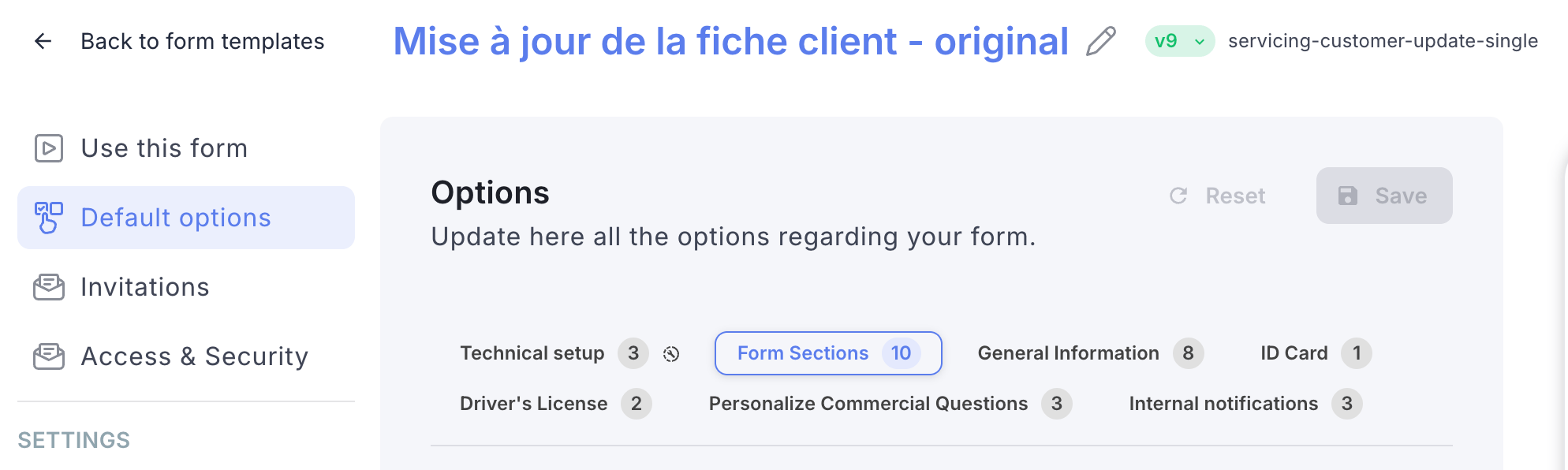 Browse through the different tabs in Default Options. For each tab, you can:
* Choose which **sections** should be visible or hidden
* Select which **questions** are asked to your clients
* Define whether each question requires a **mandatory or optional** answer
Click on **"Personalize commercial questions"** to configure one or more commercial questions to include in the form when clients fill in their details. Skip this step if you don't need any commercial questions.
Once you have made all your content changes, click **"Save"** to apply them.
## Part 2: Customize the notifications
Click on **"Invitations"**.
Click on **"Invitations"**.
Browse through the different tabs in Default Options. For each tab, you can:
* Choose which **sections** should be visible or hidden
* Select which **questions** are asked to your clients
* Define whether each question requires a **mandatory or optional** answer
Click on **"Personalize commercial questions"** to configure one or more commercial questions to include in the form when clients fill in their details. Skip this step if you don't need any commercial questions.
Once you have made all your content changes, click **"Save"** to apply them.
## Part 2: Customize the notifications
Click on **"Invitations"**.
Click on **"Invitations"**.
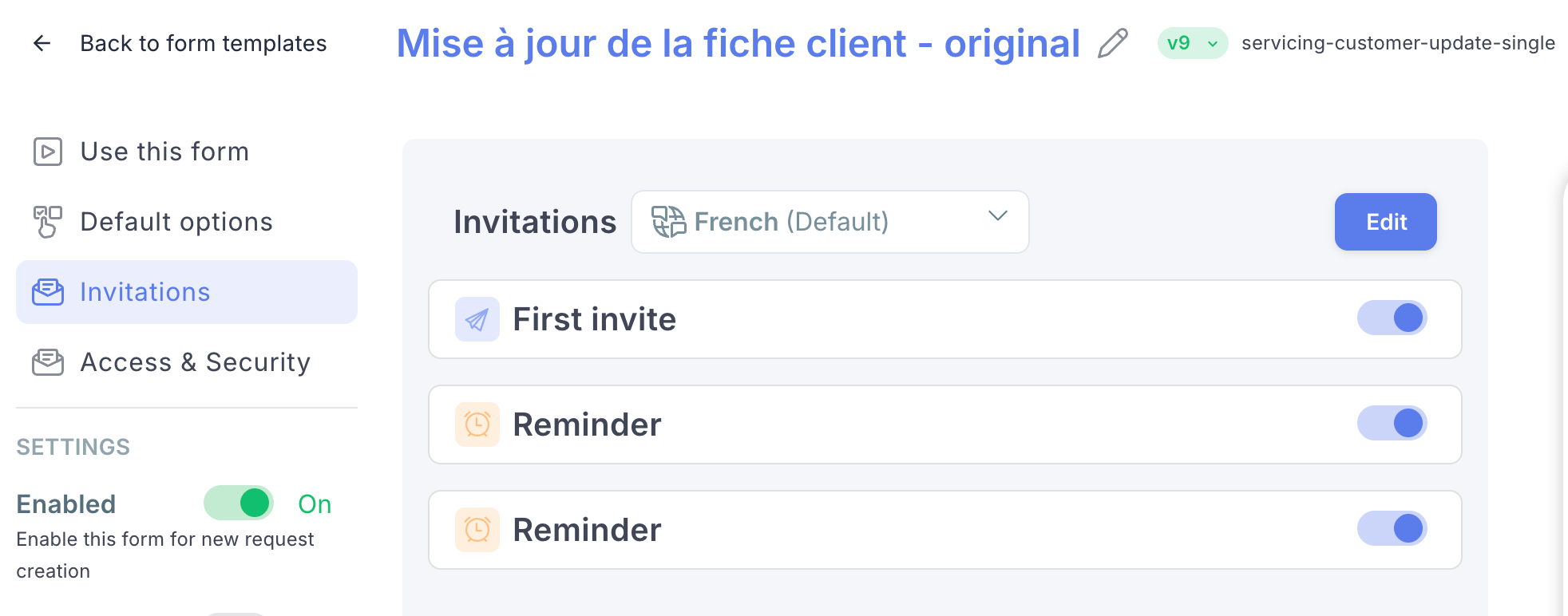 Click on **"Edit"**.
For each notification, you can activate or deactivate delivery by **email** and/or **SMS**.
For each notification, you can also edit the message content to match your office's tone and communication style.
Once you are done, click **"Save"** to apply your changes.
## You're done 🎉
Your form is now fully customized, both in terms of content and client notifications. Any form sent from Brio, Outlook, or Penbox will reflect your changes.
## What's next?
Send the client update form in bulk to all your Brio clients at once.
Send a one-off client update form directly from a Brio client file.
Click on **"Edit"**.
For each notification, you can activate or deactivate delivery by **email** and/or **SMS**.
For each notification, you can also edit the message content to match your office's tone and communication style.
Once you are done, click **"Save"** to apply your changes.
## You're done 🎉
Your form is now fully customized, both in terms of content and client notifications. Any form sent from Brio, Outlook, or Penbox will reflect your changes.
## What's next?
Send the client update form in bulk to all your Brio clients at once.
Send a one-off client update form directly from a Brio client file.