> ## Documentation Index
> Fetch the complete documentation index at: https://docs.penbox.io/llms.txt
> Use this file to discover all available pages before exploring further.
# Install the Penbox extension on Outlook
> Use Penbox directly from your Outlook inbox by installing the Penbox extension from the Microsoft Marketplace.
The Penbox extension for Outlook lets you send forms and collect responses directly from your inbox, without switching between applications.
Your Outlook email address must be added as a member of your Penbox workspace before you can use the extension. If it isn't, contact your workspace administrator.
## Install and connect the extension
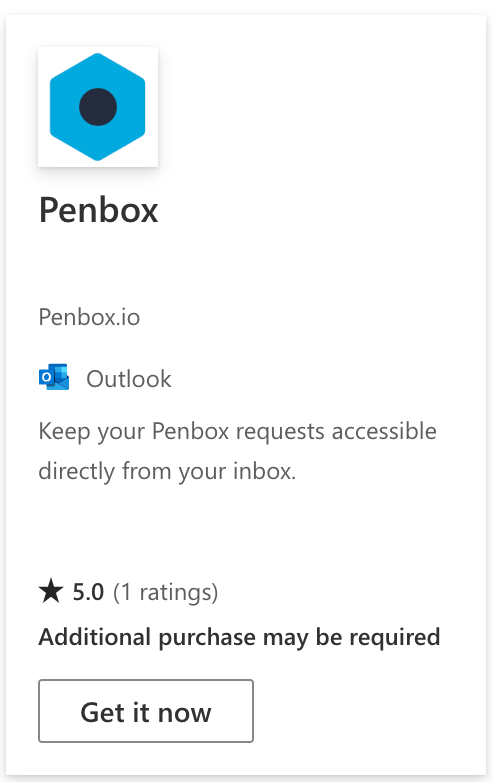
Go to the [Microsoft Marketplace](https://marketplace.microsoft.com/fr-fr/) and search for **Penbox**, or go directly to the [Penbox listing](https://marketplace.microsoft.com/fr-fr/search/products?search=penbox\&page=1).
Go to the [Microsoft Marketplace](https://marketplace.microsoft.com/fr-fr/) and search for **Penbox**, or go directly to [Penbox on the Marketplace](https://marketplace.microsoft.com/fr-fr/search/products?search=penbox\&page=1).
Sign in with your **Outlook email address**.
Click **Get it now**.
Click **Get it now**.
 Go to your Outlook inbox and click the **three dots** (more options).
Go to your Outlook inbox and click the **three dots** (more options).
Go to your Outlook inbox and click the **three dots** (more options).
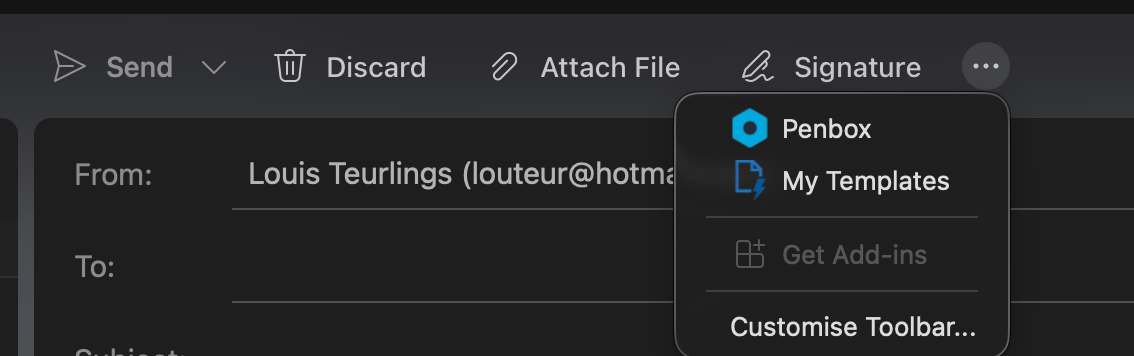 Locate the Penbox extension you just installed.
Click the **pin icon** to pin the extension so it remains visible every time you open Outlook.
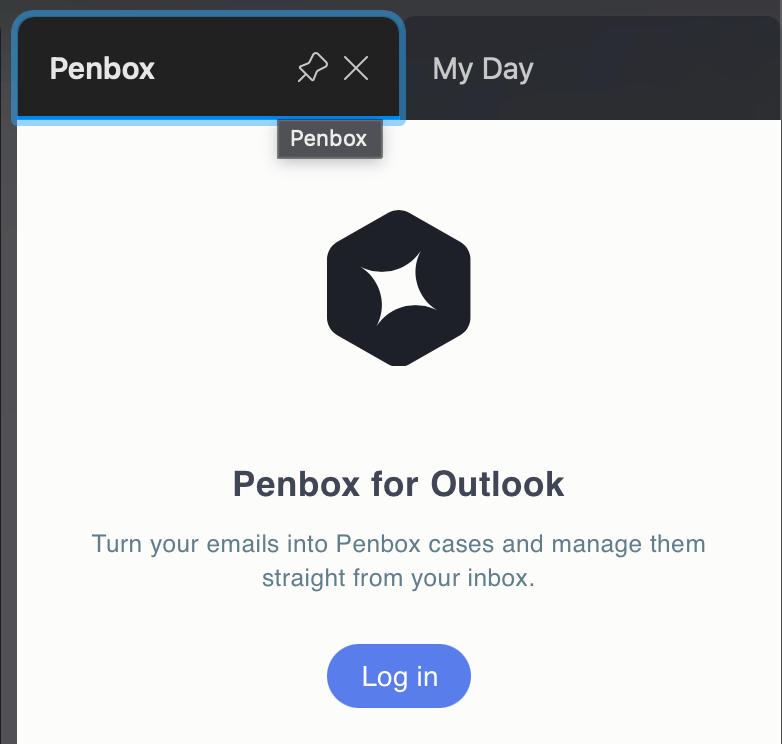
Click **Log in** inside the Penbox extension to connect it to your Penbox workspace.
Click **Log in** inside the Penbox extension to connect it to your Penbox workspace.
Locate the Penbox extension you just installed.
Click the **pin icon** to pin the extension so it remains visible every time you open Outlook.
Click **Log in** inside the Penbox extension to connect it to your Penbox workspace.
Click **Log in** inside the Penbox extension to connect it to your Penbox workspace.
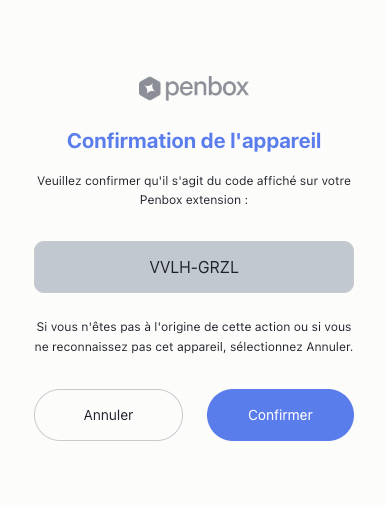
 A page will automatically open in your browser asking you to confirm that you want to connect a new device. Click **Confirm**.
A page will automatically open in your browser asking you to confirm that you want to connect a new device. Click **Confirm**.
A page will automatically open in your browser asking you to confirm that you want to connect a new device. Click **Confirm**.
 Congratulations — you can now use Penbox directly from your Outlook inbox.
***
## What's next?
Discover all the ways to send a Penbox form to your contacts.
Configure the invitation and reminder emails your contacts receive.
Congratulations — you can now use Penbox directly from your Outlook inbox.
***
## What's next?
Discover all the ways to send a Penbox form to your contacts.
Configure the invitation and reminder emails your contacts receive.