> ## Documentation Index
> Fetch the complete documentation index at: https://docs.penbox.io/llms.txt
> Use this file to discover all available pages before exploring further.
# Use a Document Intelligence template in a case template
> Attach your Penbox Intelligence extraction template to a File element in a case template, map extracted fields to your data schema, and run extraction on upload — with a bank RIB as the worked example.
In [Build your first Document Intelligence template](/guides/document-intelligence-first-template), you configured **Penbox Intelligence** on a document: validation, fields to extract, and a test run. This guide connects that template to a **case template** so real cases automatically extract structured data when someone uploads a file.
We use **RIB extraction** on a File element named **RIB** as the example — the same steps apply to any Document Intelligence template and document type.
## What you'll build
When you finish, your **case template** will:
* Include a **File** element aligned with the documents your extraction template expects
* Run **Document Intelligence** on that element using your chosen template
* **Map** each extracted field to your case **data schema** (existing fields or new ones created in one action)
* Be **ready to use** in new cases, with **Automatically extract on file upload** available where you need it
**Estimated time:** 5–10 minutes
***
Open the **case template** where you want extraction to run.
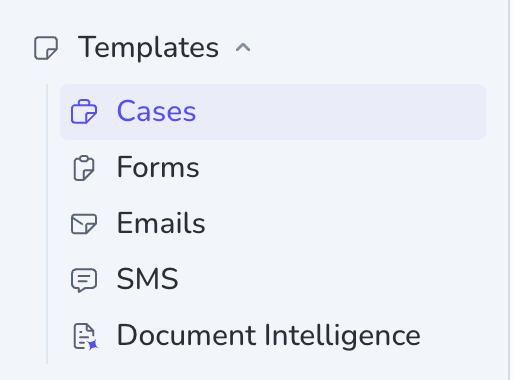
In the sidebar, expand **Templates**, then click **Cases**.
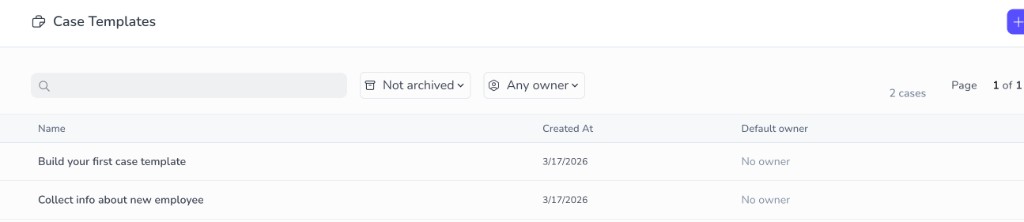
 You land on **Case Templates**. Open the template you want to edit.
 In the template **data schema**, add a **File** element that matches how you will attach the document in production (one upload per case for a single RIB, or **Allow multiple files** if you need more than one).
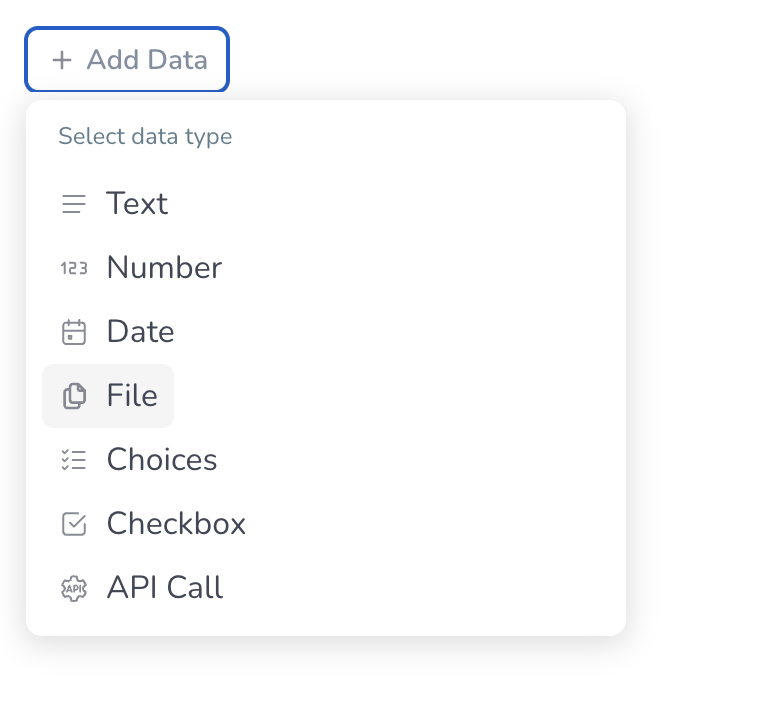
Click **+ Add Data**, then under **Select data type**, choose **File**.
In the template **data schema**, add a **File** element that matches how you will attach the document in production (one upload per case for a single RIB, or **Allow multiple files** if you need more than one).
Click **+ Add Data**, then under **Select data type**, choose **File**.
 Name the element so operators recognize it — in this walkthrough, name it **RIB** (and use your **RIB extraction** template in the next step).
 Click the **File** element, then choose **Document Intelligence**.
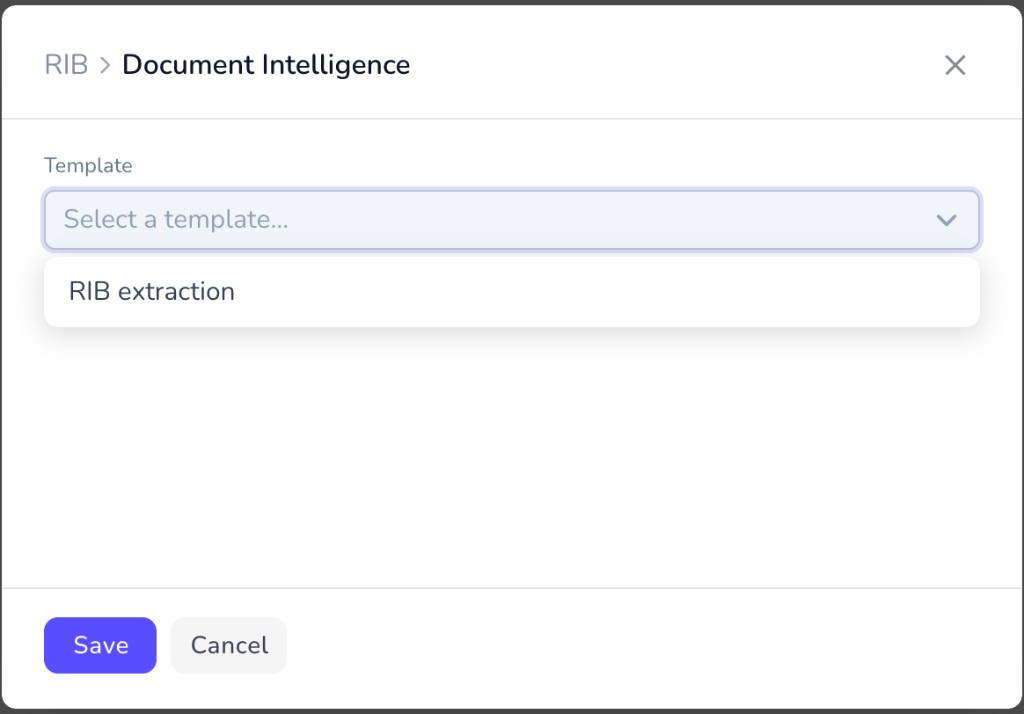
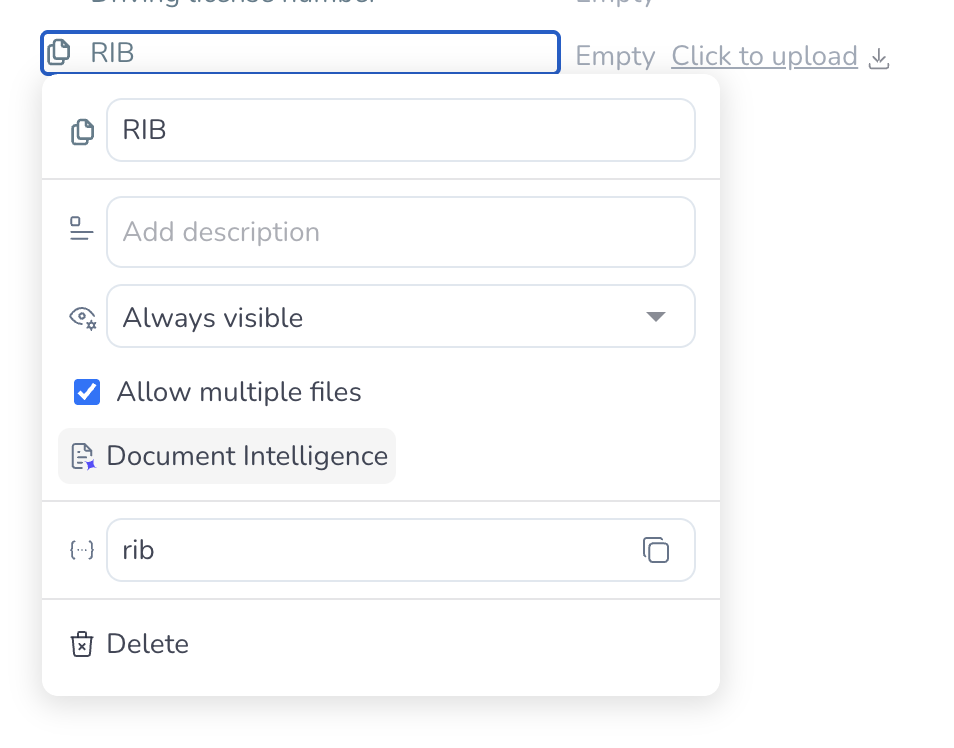 In the **Document Intelligence** dialog, the title matches your file element (for example **RIB** followed by Document Intelligence). Open the **Template** dropdown and select your extraction template — for this example, **RIB extraction**.
 Under **Field mapping**, connect what Penbox Intelligence extracts to your schema:
* **Existing fields:** click the control after **Not mapped** for each extraction field and pick the matching data schema field.
* **New fields in one step:** click **Add all fields as new fields** so each extracted field gets a matching new schema field.
Under **Field mapping**, connect what Penbox Intelligence extracts to your schema:
* **Existing fields:** click the control after **Not mapped** for each extraction field and pick the matching data schema field.
* **New fields in one step:** click **Add all fields as new fields** so each extracted field gets a matching new schema field.
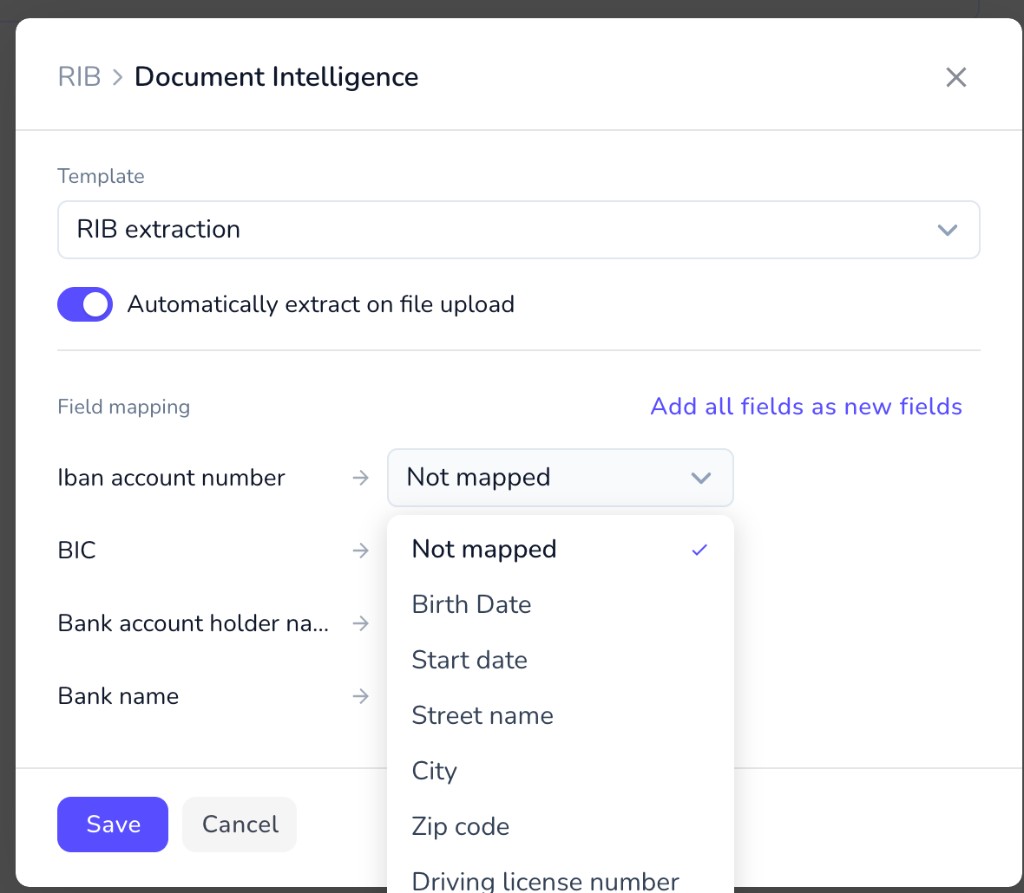 This walkthrough uses the fastest path: map everything to **new** fields via **Add all fields as new fields**.
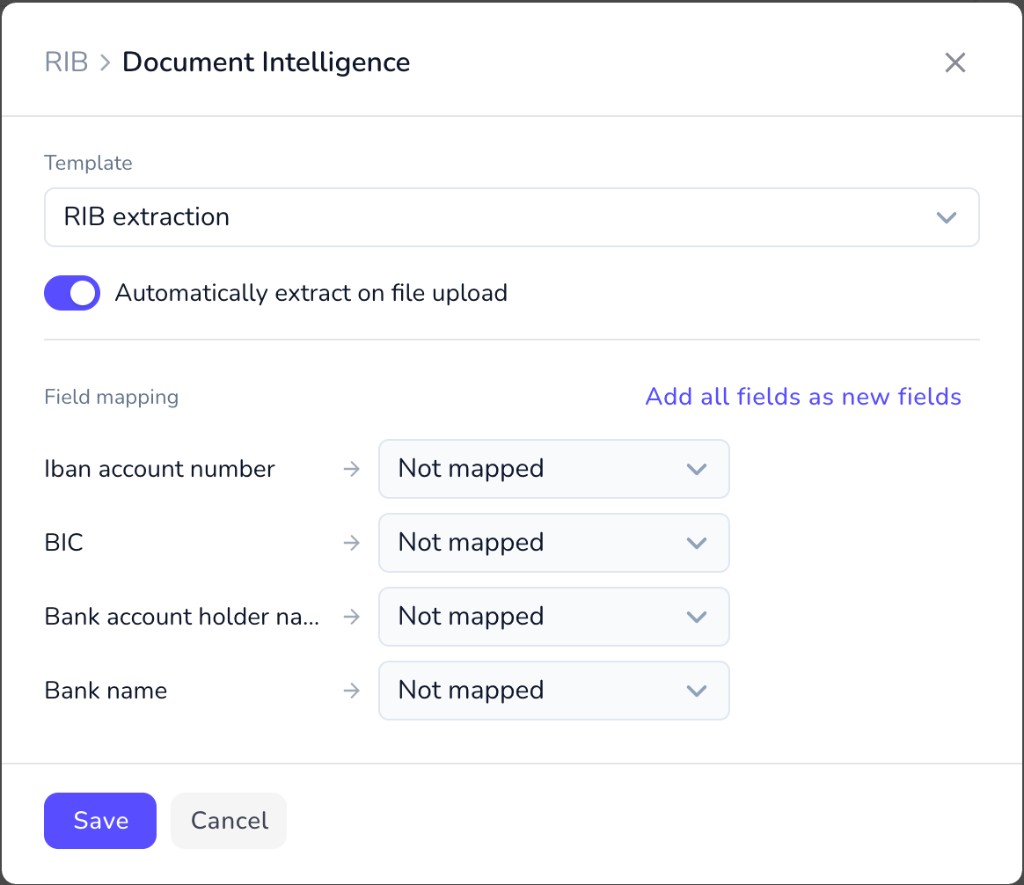 Turn on **Automatically extract on file upload** when you want extraction to run as soon as a file is attached — leaving it off is fine if you trigger extraction manually elsewhere.
Click **Save**.
***
## You're done
Your **case template** now includes your **Document Intelligence** template on the **File** element, with extracted values flowing into your **data schema** (whether you mapped to existing fields or added new ones). New cases from this template can collect uploads and structured extraction results together — swap the RIB example for any template and file element naming you use in production.
***
## What's next?
Define validation and fields to extract if you have not already.
Read how File elements behave in cases.
Fetch template definitions via Pen Connect when automating workspaces.
Exercise a template end-to-end in the app.
Turn on **Automatically extract on file upload** when you want extraction to run as soon as a file is attached — leaving it off is fine if you trigger extraction manually elsewhere.
Click **Save**.
***
## You're done
Your **case template** now includes your **Document Intelligence** template on the **File** element, with extracted values flowing into your **data schema** (whether you mapped to existing fields or added new ones). New cases from this template can collect uploads and structured extraction results together — swap the RIB example for any template and file element naming you use in production.
***
## What's next?
Define validation and fields to extract if you have not already.
Read how File elements behave in cases.
Fetch template definitions via Pen Connect when automating workspaces.
Exercise a template end-to-end in the app.