

data.* paths for your own template.
Auto-transition conditions are Penscript-powered. The JSON you put under condition is evaluated with the same Penscript engine as everywhere else in Penbox: you can use any Penscript function, operator, or pattern the language supports (not only the :eval / :defined examples below). When in doubt, start with Penscript, How Penscript works, and the Penscript reference.
What you’ll build
When you finish, your case template will:- Open Statuses in Case settings and attach auto-transition conditions to specific child statuses
- Use
watchso the engine knows which data keys or steps to observe - Use
conditionwith:eval(expression) or:defined(field present) — and extend with full Penscript where you need richer logic - Be ready for running cases whose status stays aligned with form completion and captured fields — after you click Save
1
Open your case template
Go to Templates → Cases, then open the case template you want to automate (for example Collect info about new employee).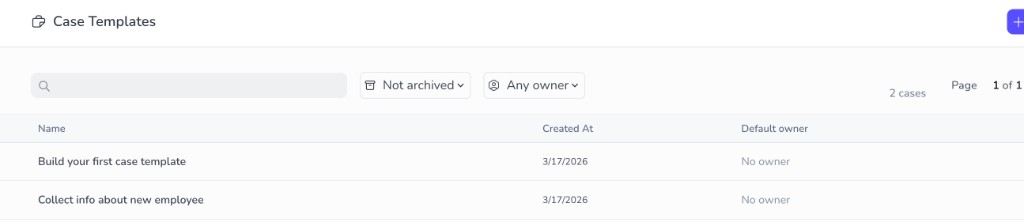
2
Open Case settings and Statuses
In Template Edition, click the settings (gear) icon in the upper-right corner. In Case settings, under Case lifecycle, select Statuses.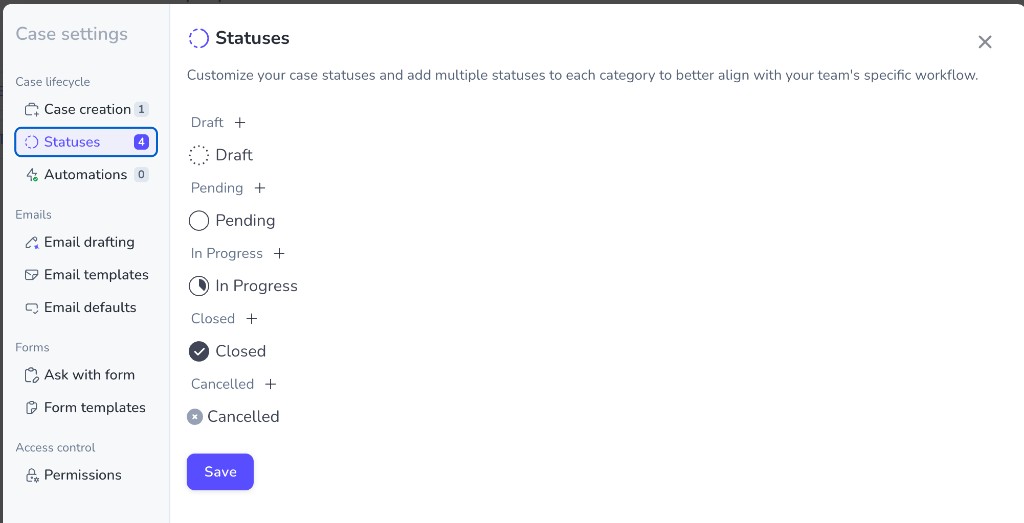
3
Choose the status and understand the condition shape
Click the child status that should be reached automatically when your condition becomes true (for example a custom In Progress child such as Info collected from the new employee, or Closed).In the panel, find Auto-transition condition (optional). Every condition uses the same overall shape: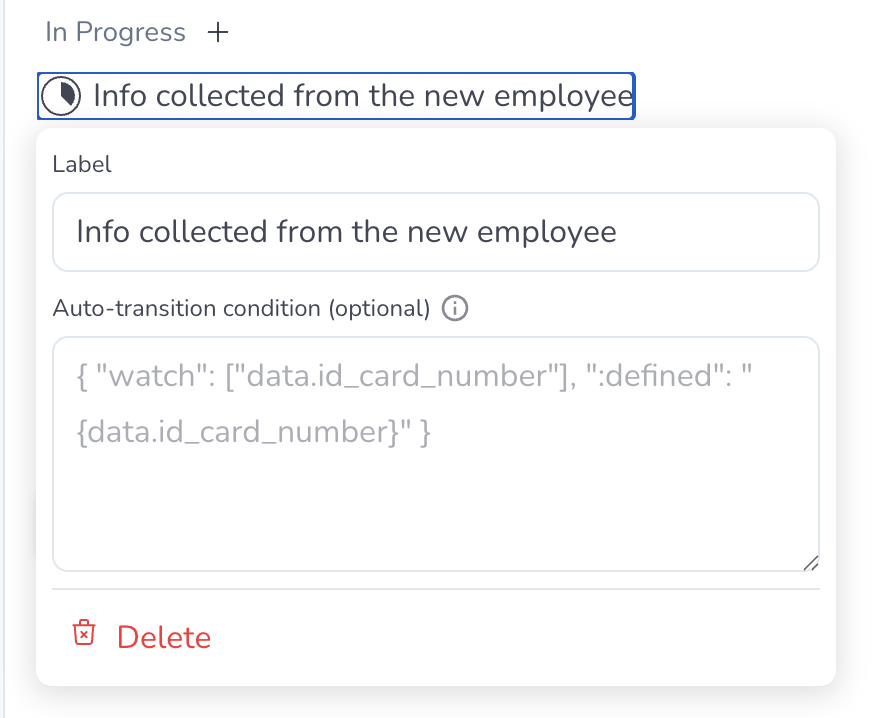 Replace
watch— an array of paths to observe. Usedata.…paths for schema values (for exampledata.bank_name) orsteps.…for a step in this template (for examplesteps.mail-new-employee-1).condition— rules that must hold for the transition to run. Common patterns include:evalwith an expression (often on step state) and:definedto require that a data field has a value. Everything here is Penscript: the same functions and syntax as in flows, templates, and the rest of the docs apply.
steps.mail-new-employee-1 with the technical id of your step (as it appears in the template). Replace data.bank_name with your data schema path.4
Transition when a step is completed (form finished)
For the status Info collected from the new employee, transition when the first onboarding step has finished — for example when an email + form step reaches completed (the new employee submitted the form).Paste a payload like this into Auto-transition condition (optional):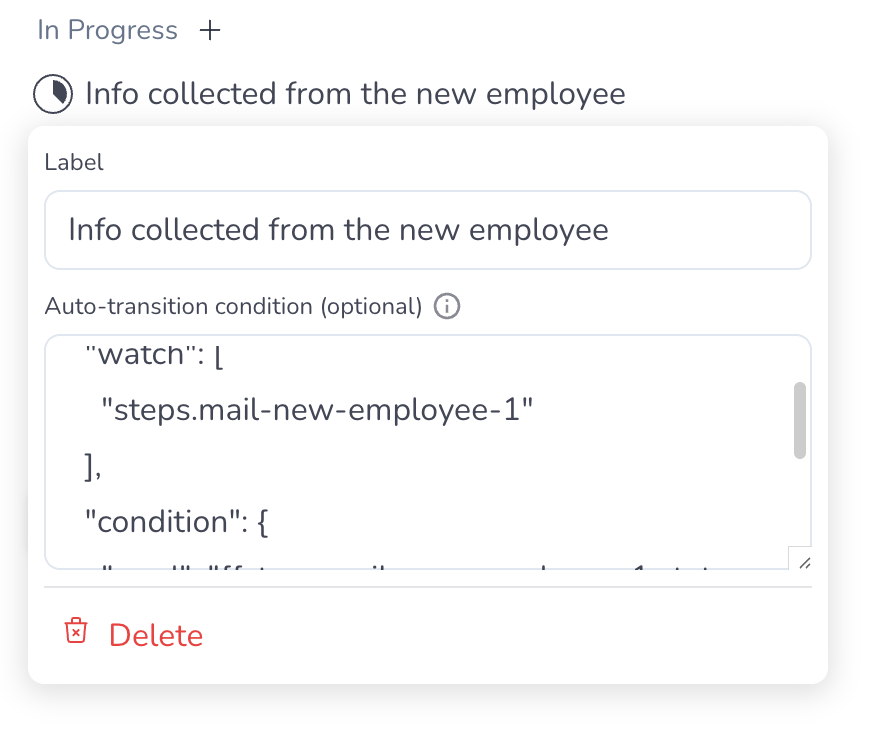
5
Transition when a data field is set
For the Closed status (or any status you choose), transition when bank name is present in case data — for example after Penbox Intelligence extraction or manual entry fills 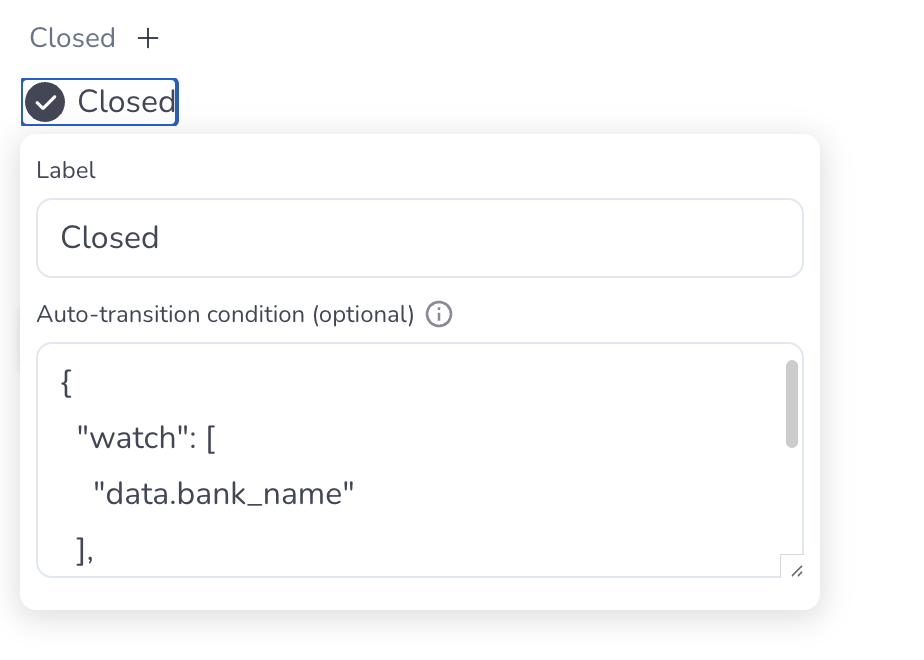 Click Save on the Statuses screen when both conditions are in place and correct for your template.
data.bank_name.Select the Closed child (or your target status), then use:Step status values (quick reference)
Mail and mail+form steps expose different status strings. Use the values below when you write:eval conditions that compare your step path (for example steps.mail-new-employee-1.status) to the right value.
Mail (email only)
Mail + form (email with a form)
You’re done
Your case template can now advance statuses automatically from step progress and from data appearing on the case. Running cases stay closer to reality without extra manual clicks, as long aswatch lists everything that should trigger a re-check and condition matches what you intend.
What’s next?
Configure statuses
Add or rename child statuses if you have not already.
Penscript
Expression language for conditions — functions, variables, and reference.
Case automations
Explore broader automation options for cases.
Statuses and lifecycle
Read how parent and child statuses work in Penbox.
Run your first case
Validate behavior on a live case.