

What you’ll build
When you finish, your case template will:- Include a File element aligned with the documents your extraction template expects
- Run Document Intelligence on that element using your chosen template
- Map each extracted field to your case data schema (existing fields or new ones created in one action)
- Be ready to use in new cases, with Automatically extract on file upload available where you need it
1
Open the case template
Open the case template where you want extraction to run.In the sidebar, expand Templates, then click Cases.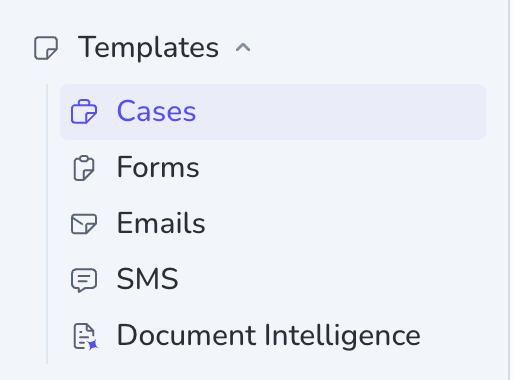 You land on Case Templates. Open the template you want to edit.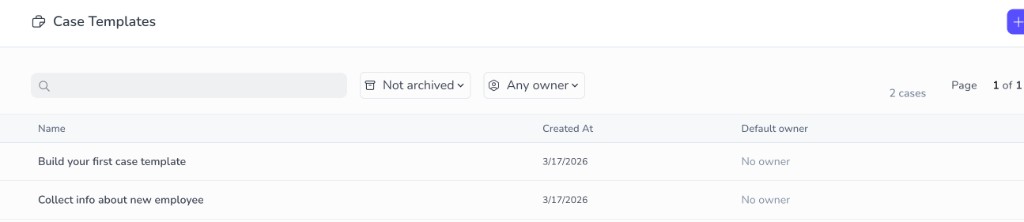
2
Add a File element for your document
In the template data schema, add a File element that matches how you will attach the document in production (one upload per case for a single RIB, or Allow multiple files if you need more than one).Click + Add Data, then under Select data type, choose File.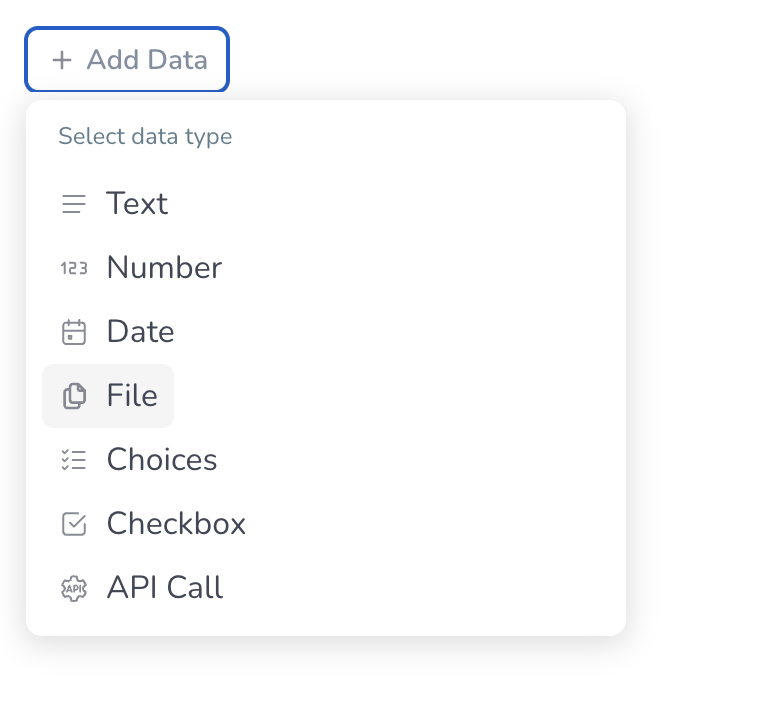 Name the element so operators recognize it — in this walkthrough, name it RIB (and use your RIB extraction template in the next step).
3
Attach Document Intelligence and map fields
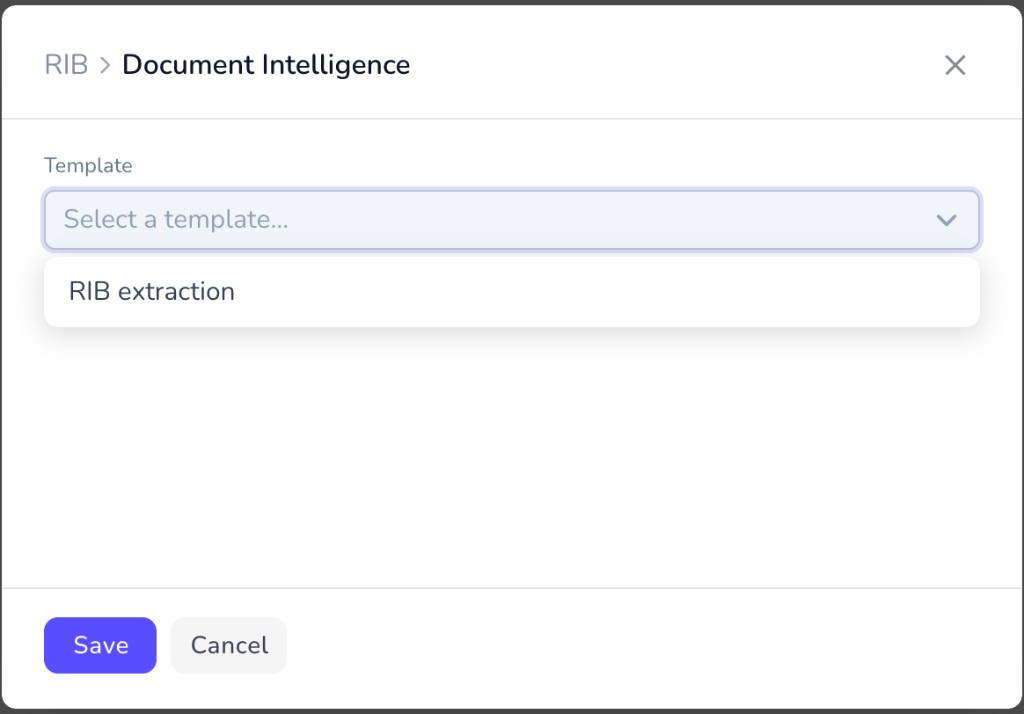
Click the File element, then choose Document Intelligence.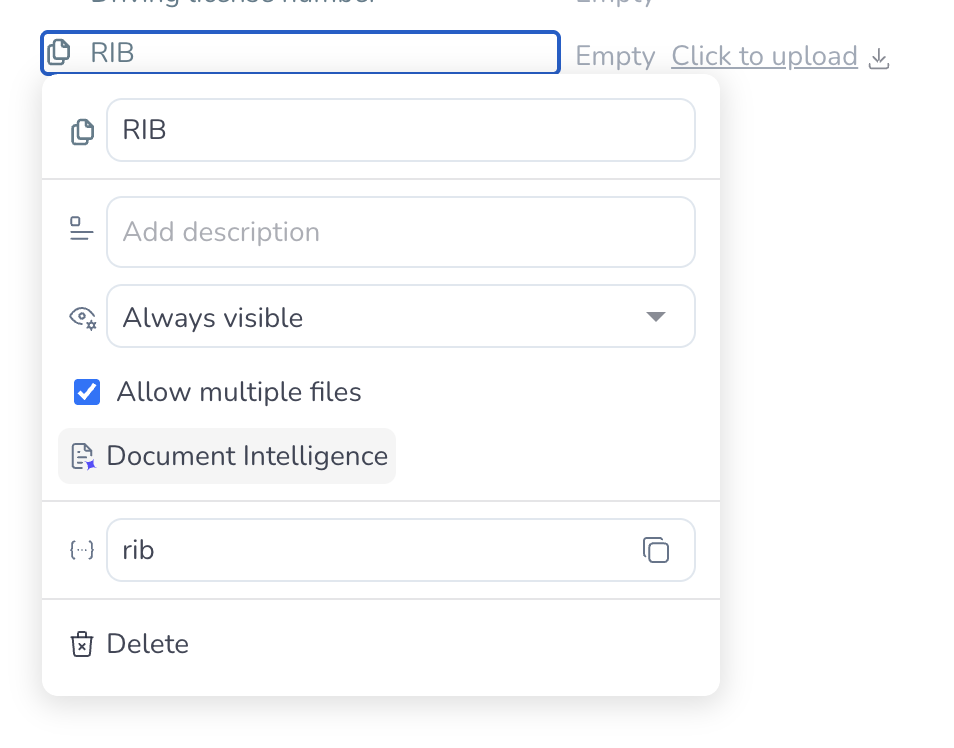 In the Document Intelligence dialog, the title matches your file element (for example RIB followed by Document Intelligence). Open the Template dropdown and select your extraction template — for this example, RIB extraction.
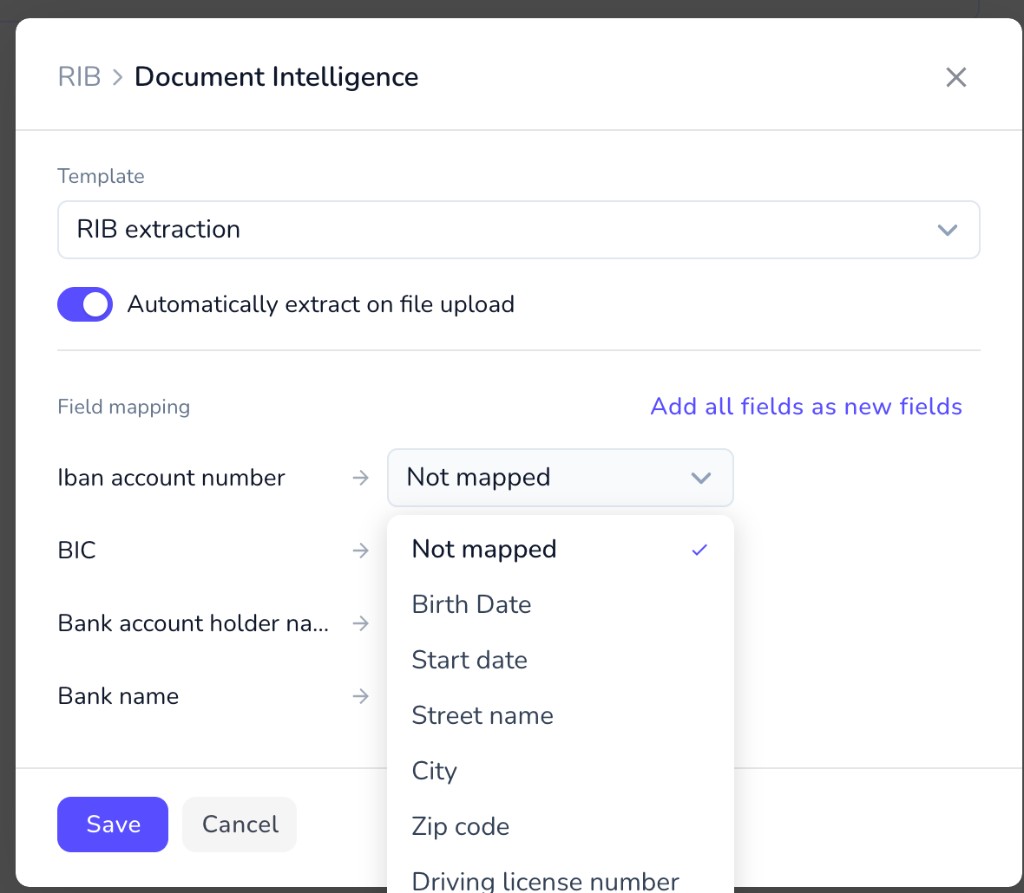
 Under Field mapping, connect what Penbox Intelligence extracts to your schema:
 This walkthrough uses the fastest path: map everything to new fields via Add all fields as new fields.
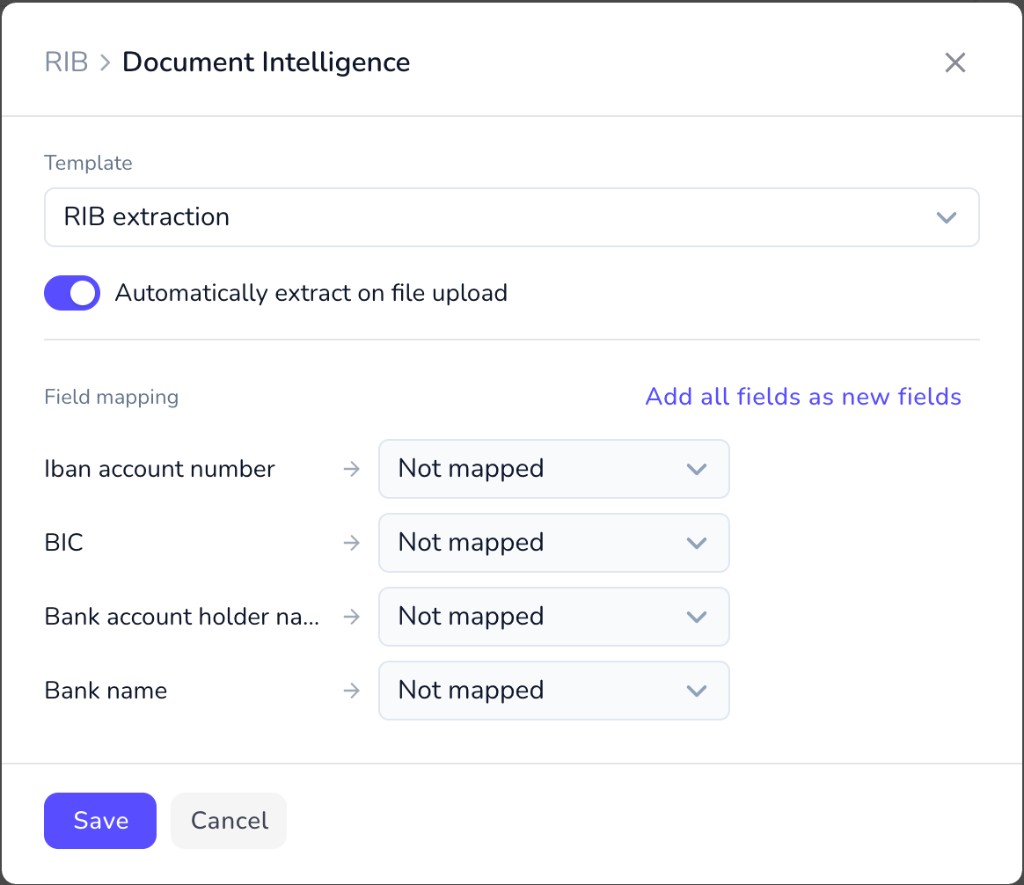 Turn on Automatically extract on file upload when you want extraction to run as soon as a file is attached — leaving it off is fine if you trigger extraction manually elsewhere.Click Save.
- Existing fields: click the control after Not mapped for each extraction field and pick the matching data schema field.
- New fields in one step: click Add all fields as new fields so each extracted field gets a matching new schema field.
You’re done
Your case template now includes your Document Intelligence template on the File element, with extracted values flowing into your data schema (whether you mapped to existing fields or added new ones). New cases from this template can collect uploads and structured extraction results together — swap the RIB example for any template and file element naming you use in production.What’s next?
Build your first Document Intelligence template
Define validation and fields to extract if you have not already.
File data schema
Read how File elements behave in cases.
Document Intelligence API
Fetch template definitions via Pen Connect when automating workspaces.
Run your first case
Exercise a template end-to-end in the app.