

Every outbound message Penbox Agent creates is a draft. Nothing leaves your
workspace until you approve it.
A builder and a runner
Penbox Agent does two distinct things.The builder
In the Form Template, Case Template, and Document Intelligence Template editors, Penbox Agent is a builder. You describe what to build or change, and Penbox Agent does it. This is where Penbox Agent handles complex Penbox logic for you:- Conditional logic. “Show the Vehicle step only when the user picks Car on step 1 and when the estimated damage amount is greater than 1000.” Penbox Agent writes the visibility expression.
- Flow variables. “Compute the full name from given name and family name.” Penbox Agent defines and wires the variable.
- Multilingual content. Penbox Agent translates every visible string and updates the form’s languages list.
- AI extraction. Penbox Agent lists data points to extract from an uploaded document and binds them to form fields.
- Building from a document. Drop a paper form or claim report. Penbox Agent reproduces it end to end.
Example of a complex pricing form
Example of a complex pricing form
Give Penbox Agent a business brief, for example: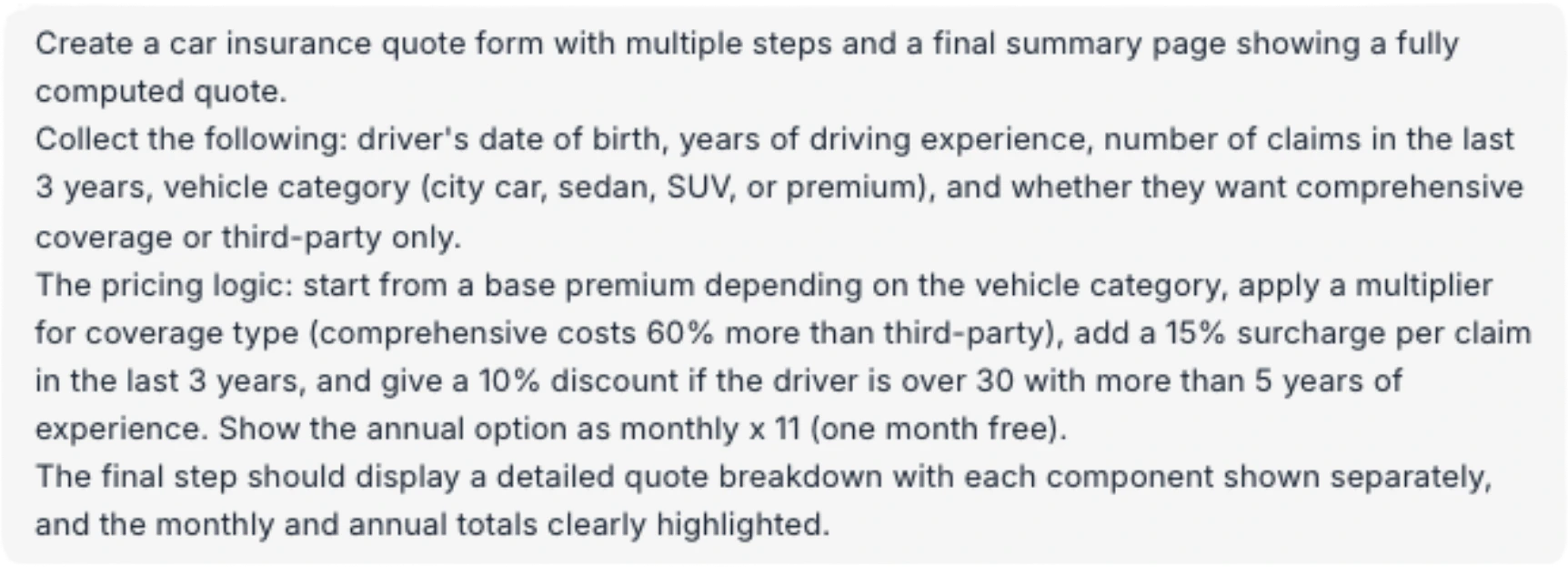
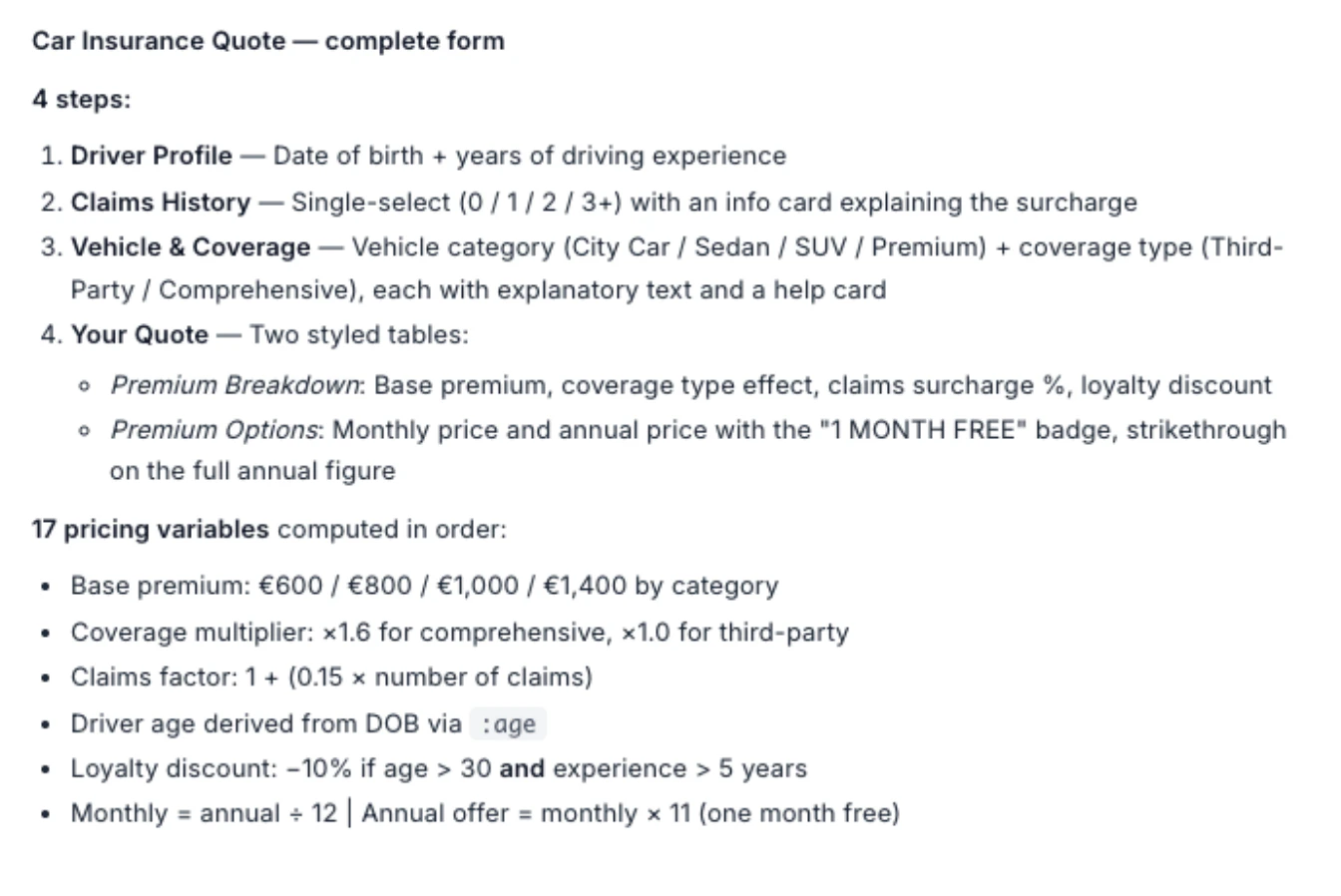
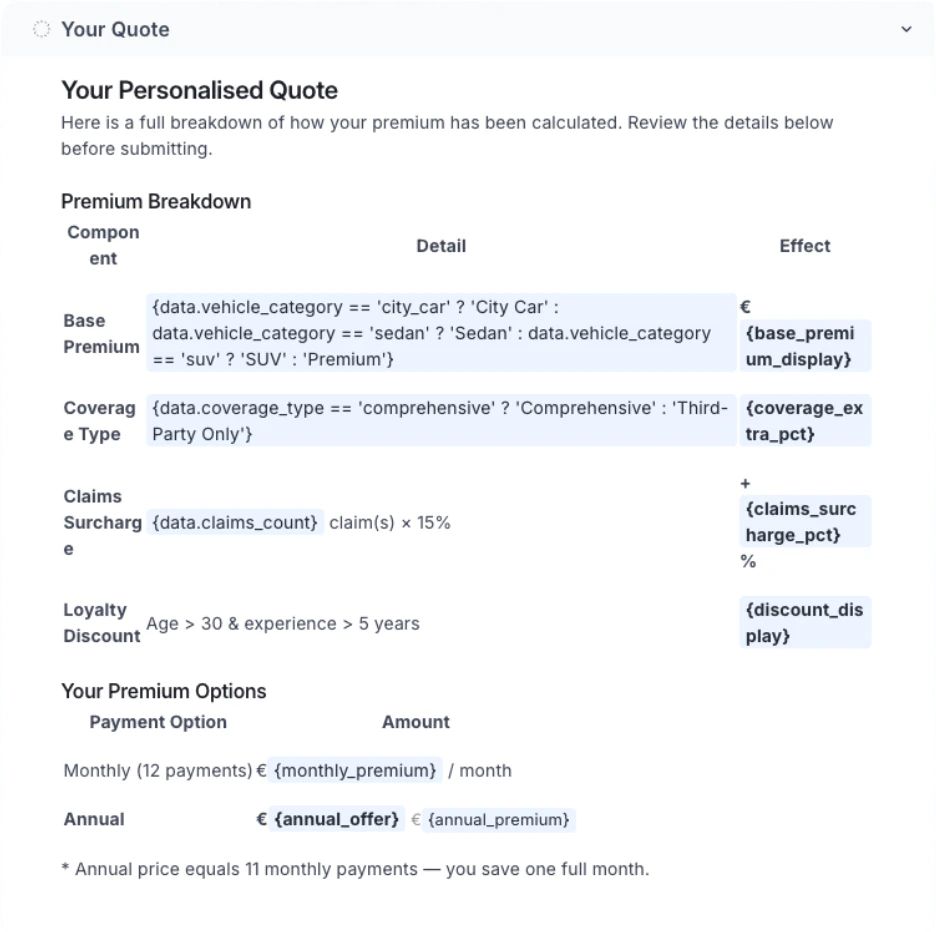
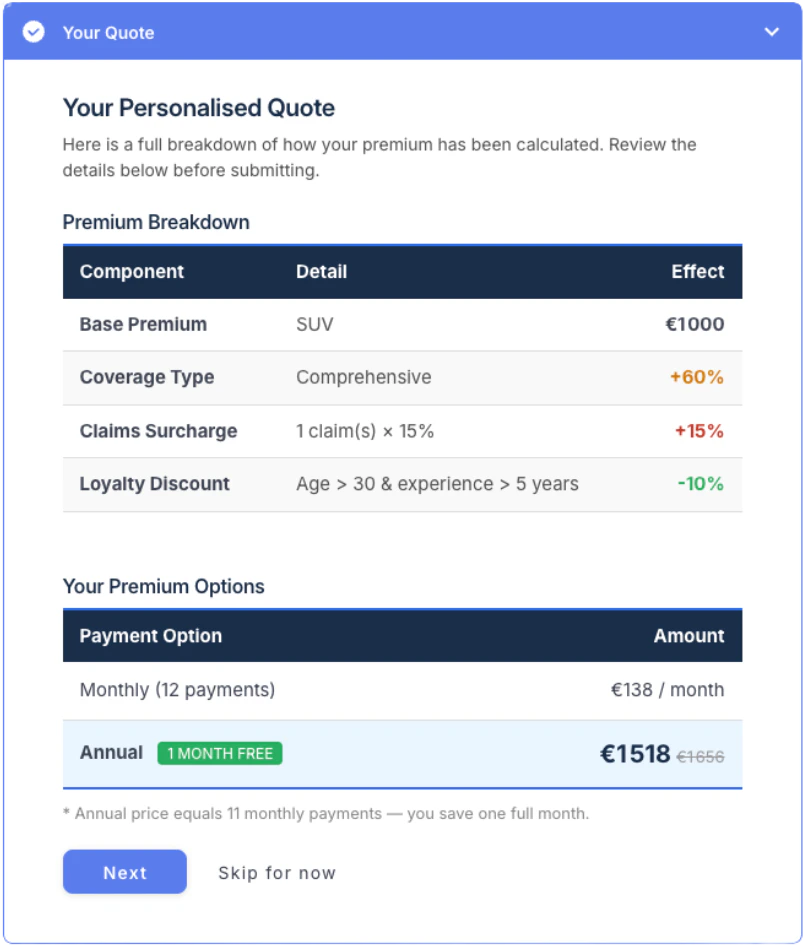
What Penbox Agent handles for you
→
What your contact sees
The runner
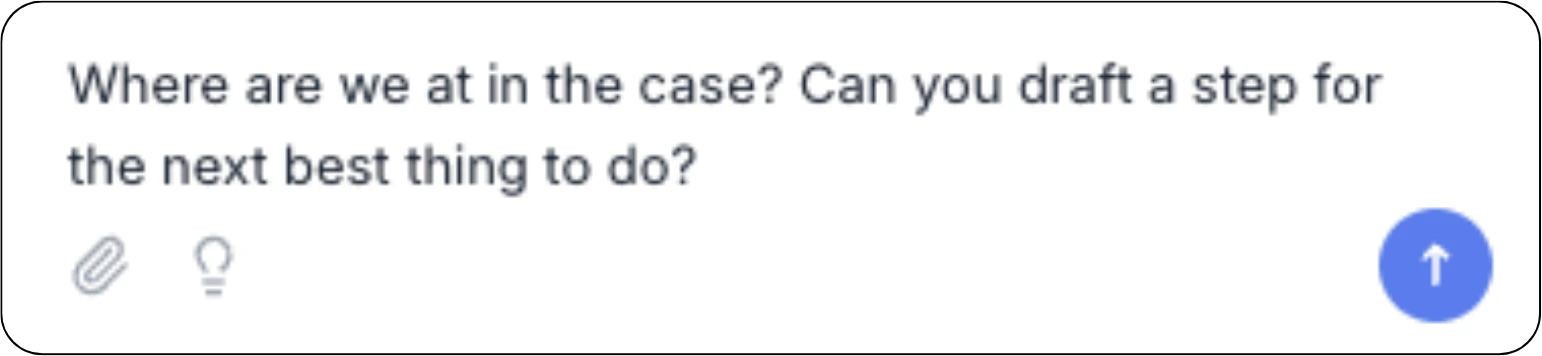
On a running case, Penbox Agent is your operator’s assistant: it reads the timeline and the data, answers questions, drafts the next message, and moves the case forward. This is where Penbox Agent answers operational questions:- What’s the state? “Summarize this case.” “What did the contact say last?” “What’s the IBAN we received?”
- What’s next? “Draft a reminder to the main contact about the missing photos.”
- Move the case. “Move to ‘In review’.” “We’re waiting for the contact now.”
Setup
How you open the chat depends on the surface:- In a case or a Case Template. Click Ask Penbox in the top right. The button turns blue and the chat opens on the right.
- In the Form Template editor. Use the Assistant / Preview toggle in the top right. Assistant opens the chat; Preview hides it and shows the form as a contact would see it.
- In a Document Intelligence Template. The chat is always open.
Penbox Agent does not edit Email Templates or SMS Templates. Those stay manual.
Form Template editor
Build forms: steps, fields, conditional logic, translations, signatures, automations.
Case Template editor
Design recurring case workflows: data schema, contacts, steps, statuses,
automations.
Document Intelligence Template editor
Configure extraction fields for documents.
Live cases
Answer questions, set values, draft the next step, move the case forward.
Essentials
Reverting changes
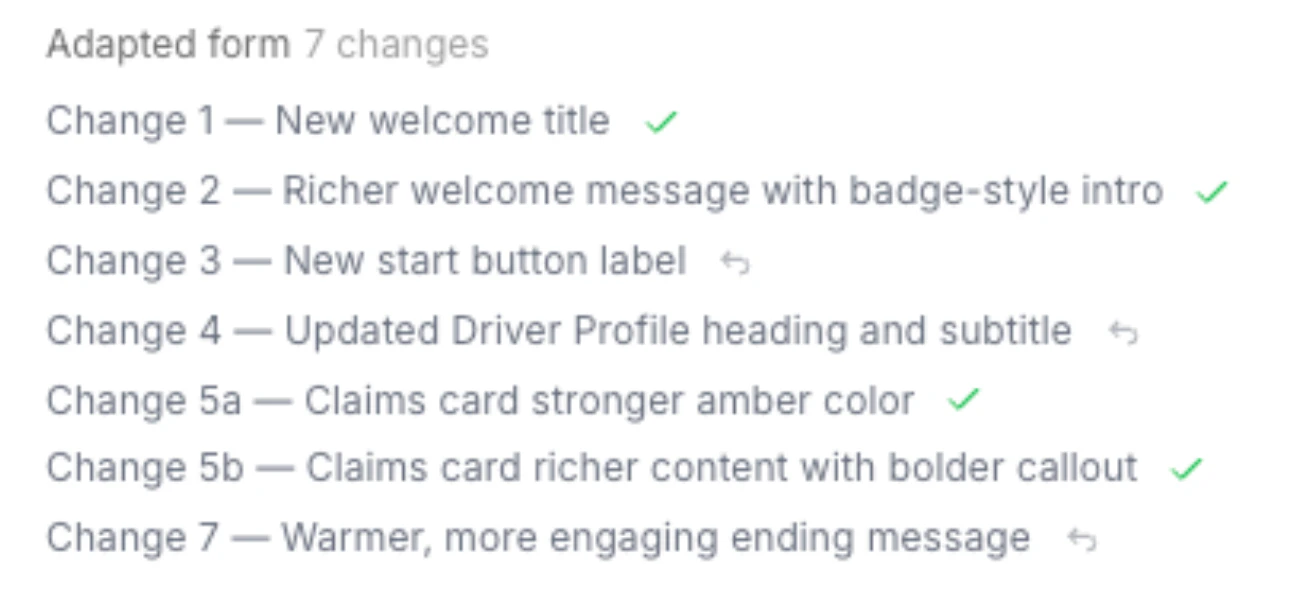
Penbox Agent records each change it makes as a separate entry in the chat. A simple request produces one entry. A complex request, like building a form from scratch, produces many. Penbox Agent breaks the work into smaller steps and each step gets its own entry. The entry header names the surface and how many attributes the step touched. The label format depends on the surface:- Form Template editor: Adapted form …
- Case Template editor: Adapted template …
- Live case: Updated case …
1 change) or many (7 changes).
Hover an entry to reveal the revert arrow. Click it to undo, click again to reapply.

- Highlight the matching element in the editor (purple outline).
- Reveal a revert arrow for that single change. Click to undo just that one.
In a Document Intelligence Template, the revert arrow does not appear in the
chat. Ask Penbox Agent in plain language (“undo that last change”) and it will
revert.
Chat history
Penbox Agent keeps every conversation you start. Open the chat panel and you see your previous conversations on this artifact, each with an auto-generated title summarizing the first message.- History is per artifact. A Form Template, a Case Template, a Document Intelligence Template, and a Case each have their own conversation list.
- History is private. Your colleagues have their own conversation lists, even on the same artifact.
- Open a previous conversation to resume it. Penbox Agent picks up where you left off.
- Delete a conversation when you no longer need it.
Working with files
Drop or attach a PDF/image into the chat. Penbox Agent reads it and builds the matching artifact.- Drop a paper form into the Form Template editor. Penbox Agent reproduces it as a Penbox form with every field, every section, and the right types.
- Drop a claim report or intake form into the Case Template editor. Penbox Agent generates a Case Template with the matching data schema, contacts, and workflow steps.
Languages
Penbox Agent answers in the language you write in, or in the locale of the template or case you have open. Multilingual Form Templates work end to end: Penbox Agent translates form content into French, Dutch, English, German, and other languages.What Penbox Agent does not do
- Does not send messages. On live cases, every email, SMS, or form is a draft.
- Does not trigger automations directly. Automations run on their own conditions.
- Does not edit artifacts other than the one you have open.
- Does not guess. Ambiguous requests get a clarifying question.
Next Steps
Penbox Agent for Templates
Build templates with Penbox Agent
Penbox Agent on Live Cases
Work on running cases with Penbox Agent
Form Templates
Build forms with Penbox Agent
Case Templates
Design case workflows with Penbox Agent