

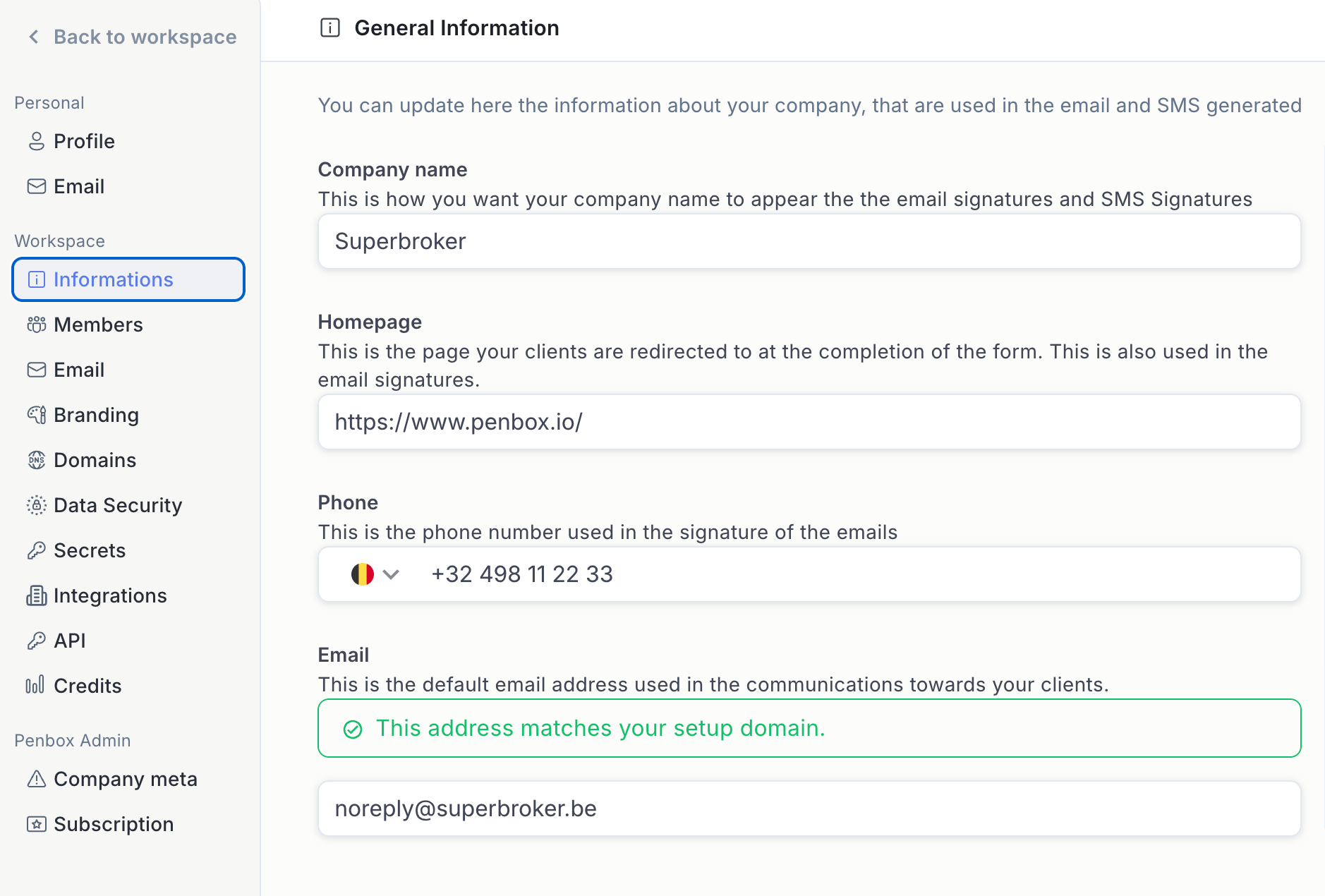
Information
In the Information tab:- Company name: verify and update it if necessary.
- Website: verify and update your company website. This is useful for redirecting your clients to your site at the end of a form.
- Phone number and general email address: verify and update these. They are typically used in certain form signatures.
Members
In the Members tab, invite your teammates to join your workspace: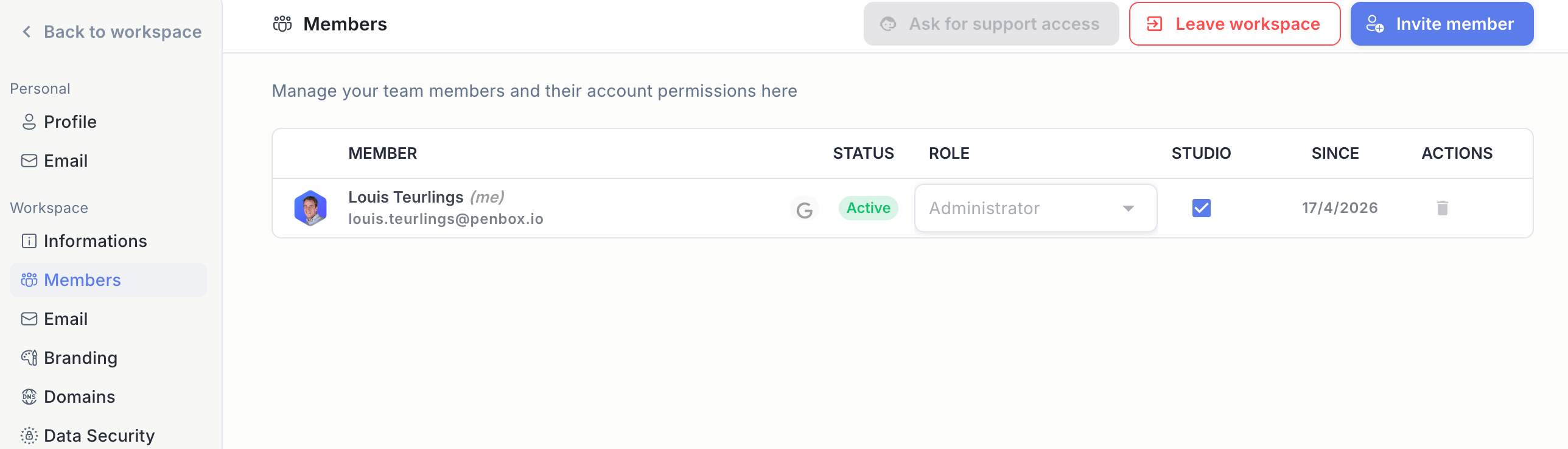
1
Invite a new member
Click Invite member.
2
Fill in their details
Enter their email address, first name, and last name (all required).
3
Assign a role
Choose the role you want to assign to them.
4
Set template permissions
Choose whether to give them access to edit case templates and form templates.
5
Send the invitation
Click Send.
Branding
In the Branding tab, define your visual identity to improve the experience for your clients: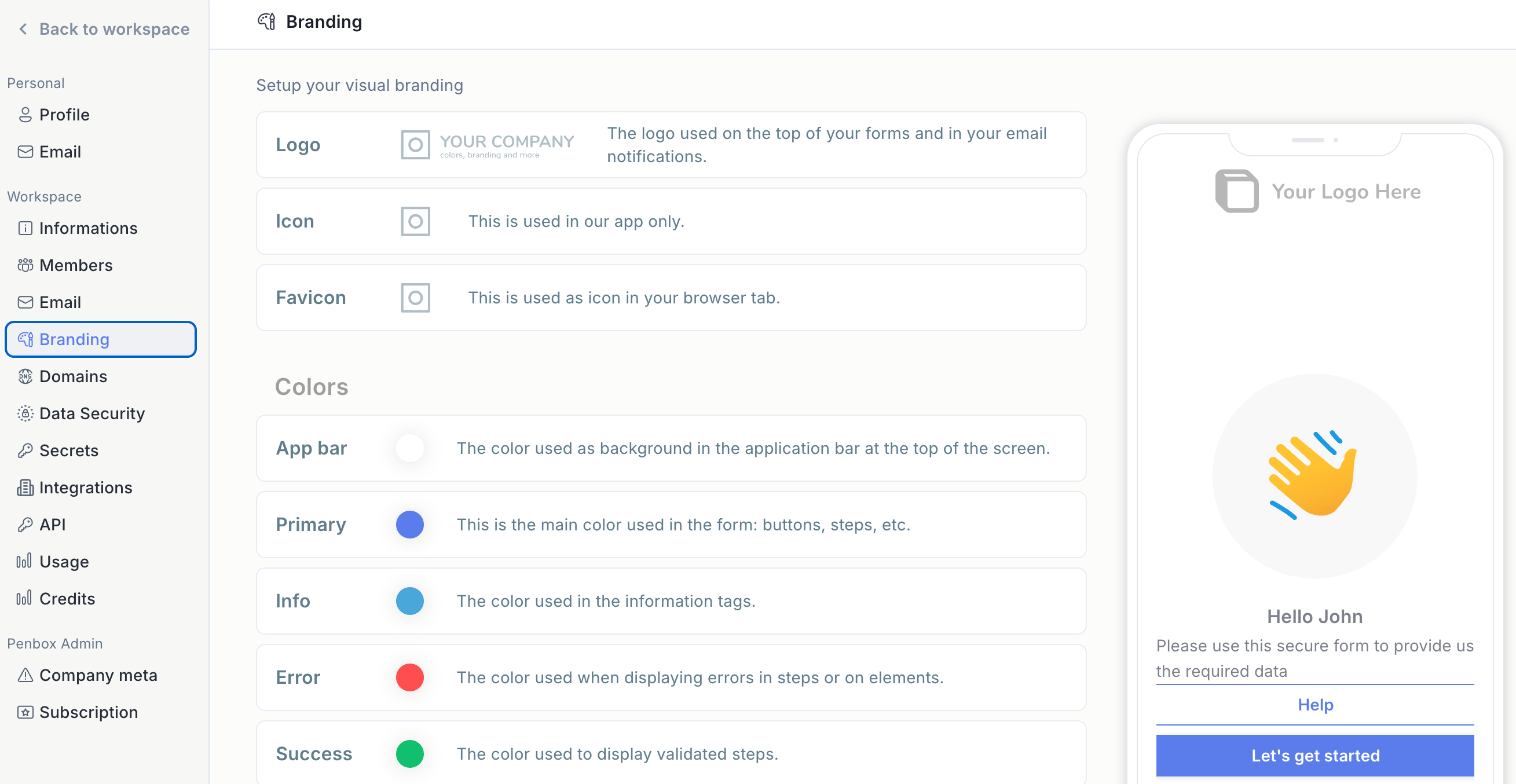
- Upload your logo, icon, and favicon.
Domains
In the Domains tab, configure where your forms are hosted and from which address your emails are sent.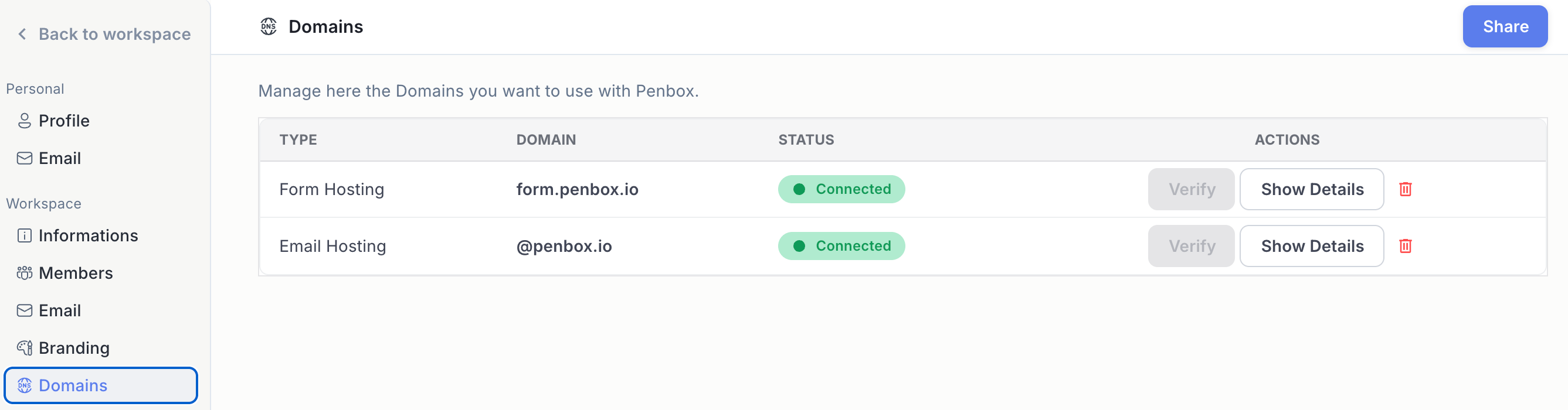
1
Set your form hosting domain
Define the domain on which your forms will be hosted.
2
Set your email sending domain
Define the domain from which your emails will be sent.
3
Share the instructions
Click Share to retrieve the configuration instructions to send to your domain administrator.
4
Verify the connection
Once your domain administrator confirms the changes are done, click Verify and make sure all statuses show as Connected.
What’s next?
Build your first form
Create your first form template in Penbox.
Members
Learn more about roles and permissions in your workspace.