

- Directly from Brio
- From the Penbox extension on Outlook
- In bulk via a Campaign in Penbox
- Individually from Penbox
- Via a generic link on your website or in an email signature
Send a form individually from Penbox
1
Open your workspace
Go to your Penbox workspace.
2
Create a new form
Click the + next to Forms.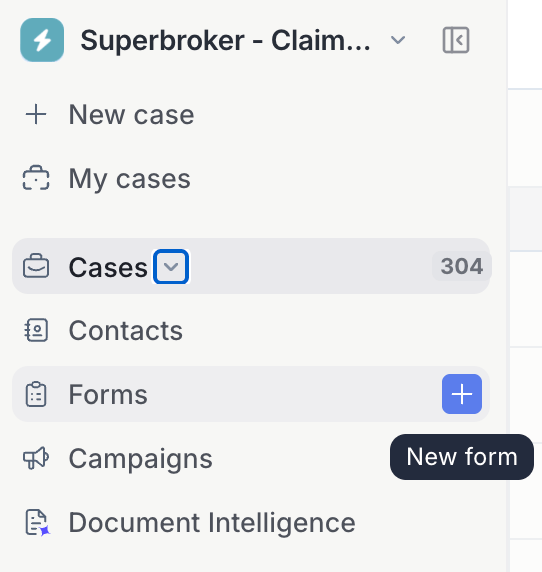
3
Choose your form
Select the form you want to send.
4
Define the contact
Set the person you want to send the form to:
- Existing contact: search by email address to check if the contact is already known in Penbox.
- New contact: fill in their first name, last name, email address, and phone number.
5
Send
Click Send.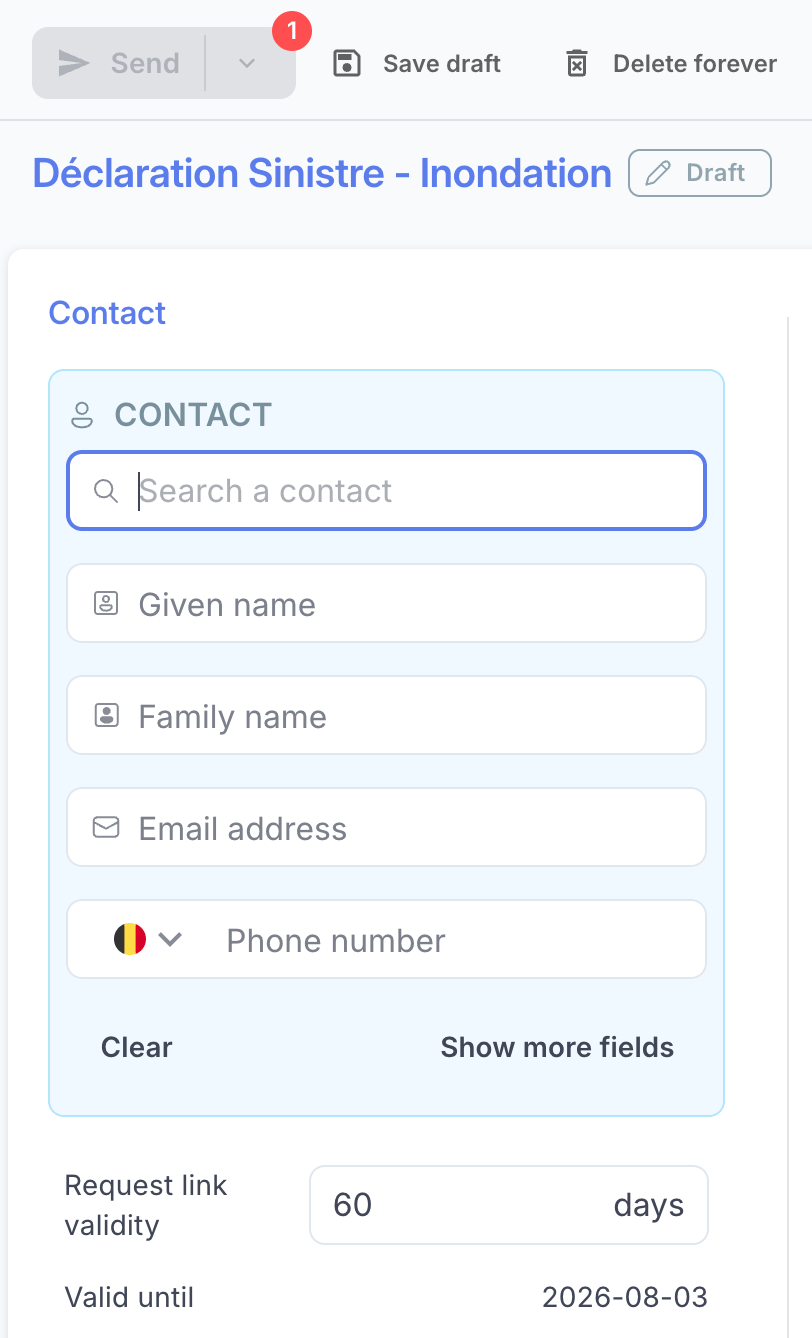
Share a form via a generic link
You can make a form available via a generic link to embed on your website or add to an email signature.1
Open your workspace
Go to your Penbox workspace.
2
Go to your form template
Click Templates → Forms, then select the form you want to share.
3
Check default options
Click Default options and make sure that any mandatory options have a default value. If they don’t, set them and click Save.
4
Copy the generic link
Go back to your form’s home page and click Copy link in the “Generic link to embed on your website” banner.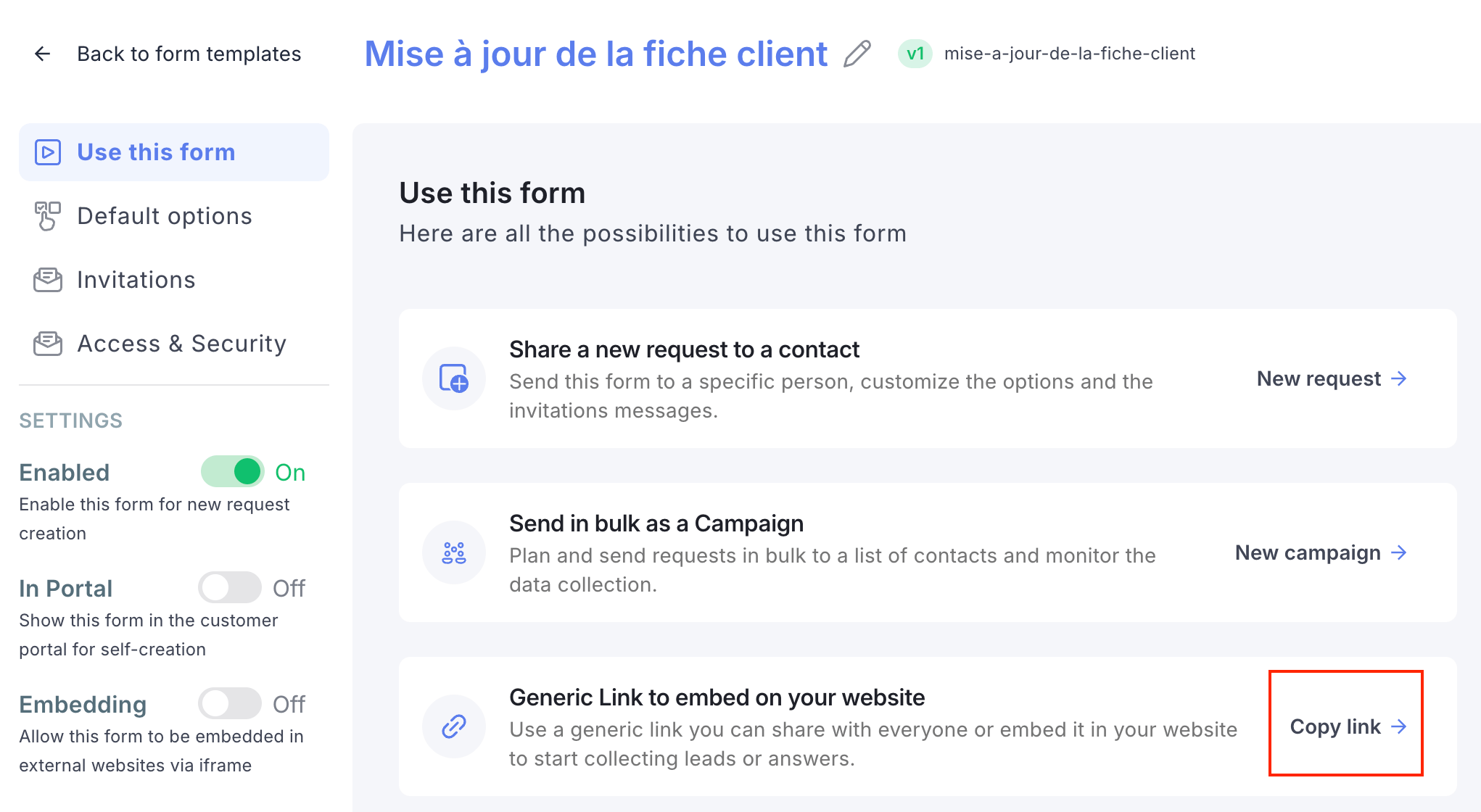
What’s next?
Build your first form
Create a form template in Penbox from scratch.
Form Notifications
Configure the invitation and reminder emails your contacts receive.