

Part 1: Generate your export files from Brio
You need to produce two export files from Brio: one for your clients and one for your contracts. Download the two command files below first, then follow the steps for each one.
Repeat the following steps once for the client .bsr file, then once more for the contract .bsr file.
1
Open Brio
Open Brio.
2
Go to Selections
Click Sélections → Sélection et rapport (or Selectie → Selectie en rapporten).
3
Load the command file
Drag and drop the
.bsr command file into the Structure panel on the left side of the screen.4
Run the selection
Click Exécuter sélection / Selectie uitvoeren and wait for the selection to complete.
5
Confirm
Once the operation has finished, click OK.
6
Export the result
Click Exporter le résultat / Resultaat exporteren, then choose Excel file. Your export file is ready.
7
Repeat for the second file
Repeat the steps above with the second
.bsr file to generate your second export.Part 2: Set up in Penbox
1
Go to Penbox
Open your Penbox workspace.
2
Check that the client update form template is available
Navigate to Templates → Forms (or Sjablonen → Formulieren) and confirm that the “Mise à jour de la fiche client” / “Klantenbestand update” form template is present in your workspace.
Part 3: Create and configure the campaign
1
Open Campaigns
Click Campaigns in the left-hand navigation.
2
Create a new campaign
Click Create a campaign.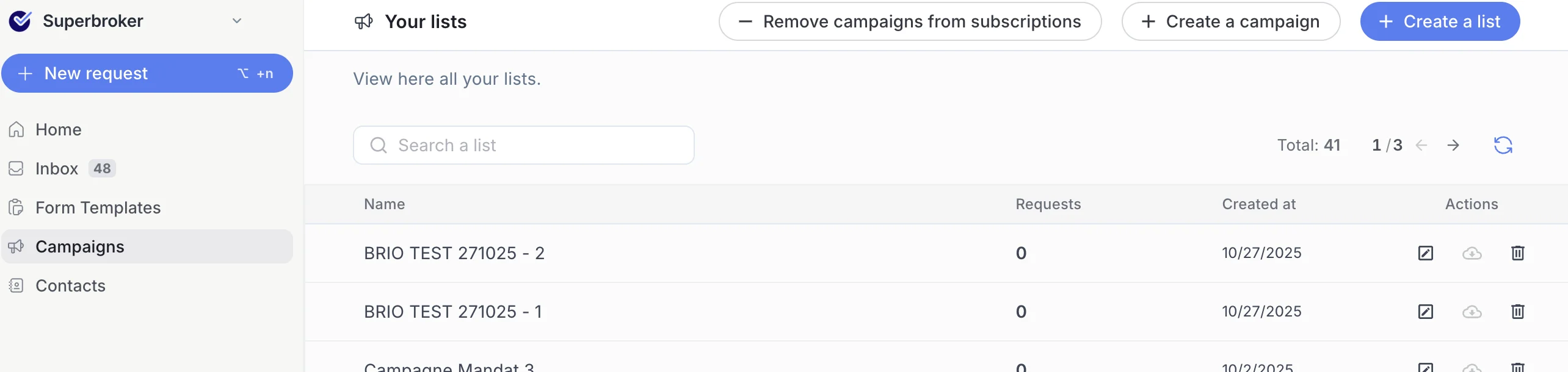
3
Name your campaign
Give your campaign a clear, recognisable name.
4
Add data
Click Add data.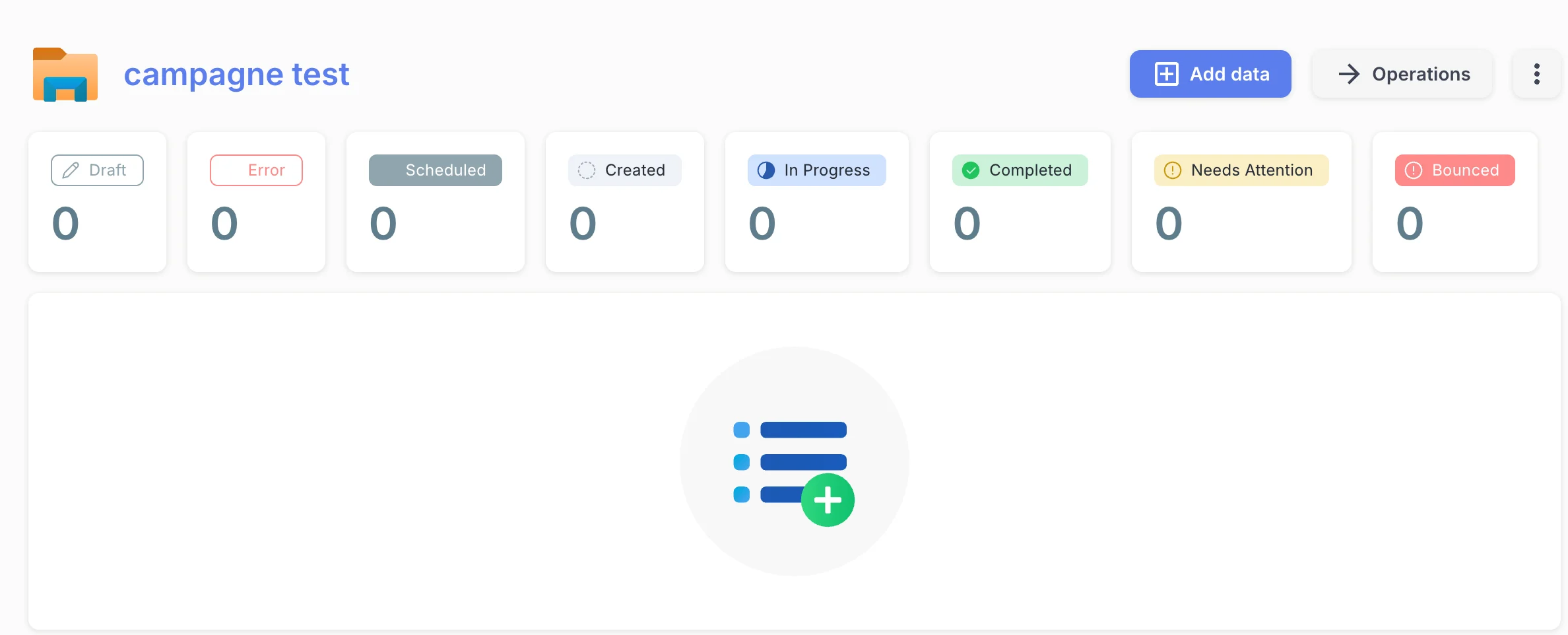
5
Select the form
Choose the form you want to send in bulk — in this case, select “Mise à jour de la fiche client”.
6
Select the file type
Choose Brio as the file type.
7
Upload your Brio exports
Upload the two export files you generated from Brio:
- Your client export
- Your contract export
8
Enter your Brio number
Fill in your Brio number in the field provided.
9
Upload the files
Click Upload files.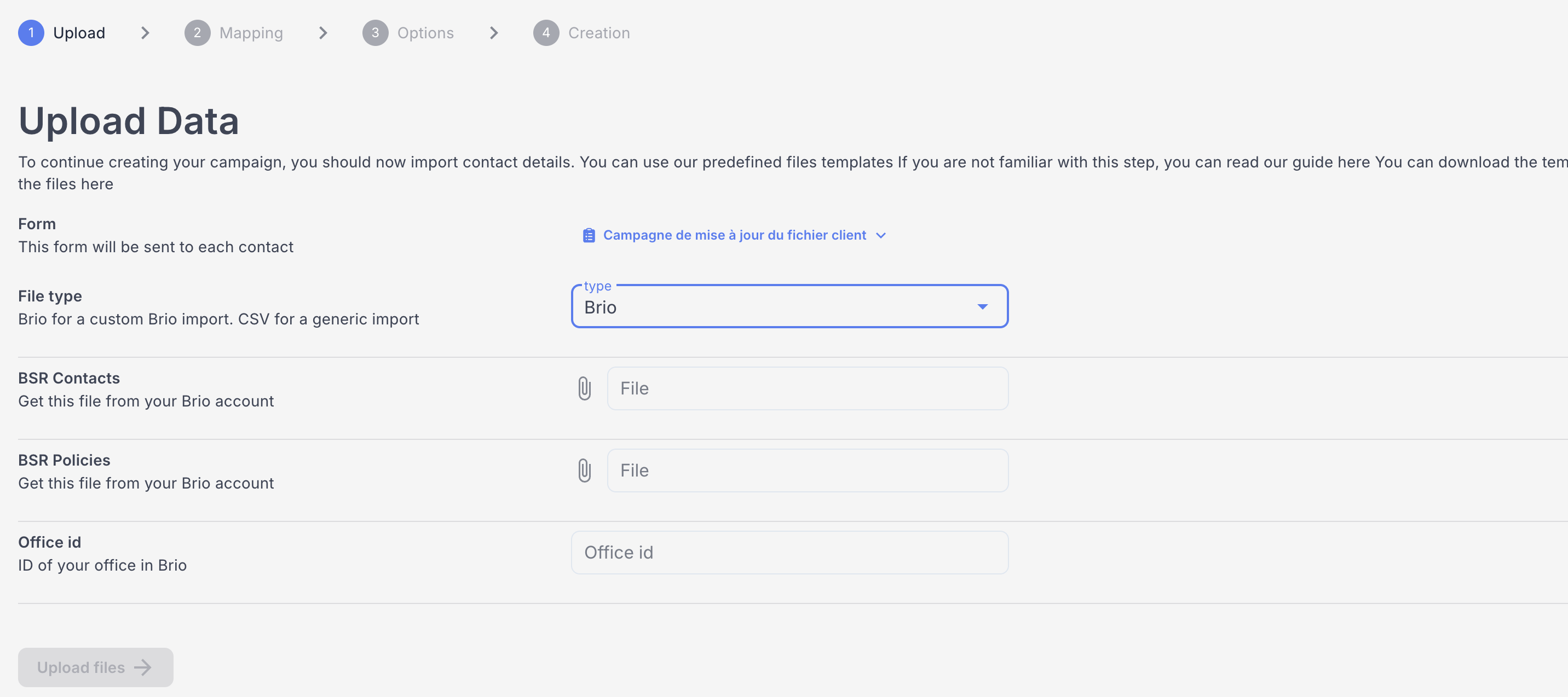
10
Check the mapping screen
Review the mapping screen that appears and confirm that all fields have been imported correctly.
11
Validate the mapping
Click Validate mapping.
12
Preview the forms
You will now see a preview of the individual forms that will be sent. Take a moment to check the content of a few.
13
Validate options
Click Validate options.
14
Start creation
Click Start creation to generate all the individual forms. This may take a moment.
Part 4: Schedule your sends
1
Open the scheduler
Once the forms are created, click Schedule to define when and how sends go out.
2
Configure your send schedule
Fill in the following options:
- Sends per wave — how many forms go out per batch
- Start date — when sending should begin
- Send time — the time of day for each wave
- Send days — the days of the week on which sends happen
Example: 3 sends per day · send days: Monday and Wednesday · send time: 11:00 AM → 3 forms will go out every Monday and Wednesday at 11 AM.
3
Start scheduling
Click Start scheduling. This may take a moment.
You’re done 🎉
Your campaign is created and your sends are scheduled. Well done!What’s next?
Send & receive a client update
Learn how to trigger a single client-file update from Brio and import the response back.
Form Notifications
Configure the invitation and reminder emails your clients receive.