

What you’ll build
By the end of this guide you will have:- Configured which sections and questions appear in the “Mise à jour de la fiche client” / “klantenbestand update” form
- Customized the email and/or SMS notifications your clients receive
Getting started
1
Open the form in Penbox
In Penbox, click on Templates → Forms.
2
Select the form
Click on the “Mise à jour de la fiche client” / “klantenbestand update” form to open it.
Part 1: Customize the form content
1
Open Default Options
Click on “Default options”.
2
Open Default Options
Click on “Default options”.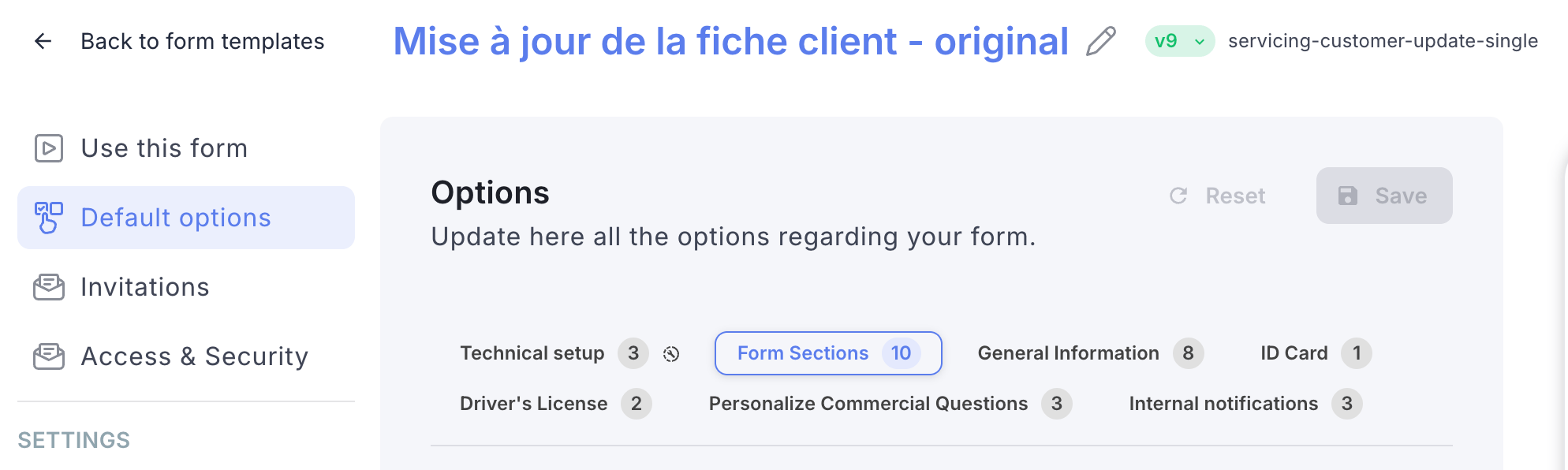
3
Configure sections and questions
Browse through the different tabs in Default Options. For each tab, you can:
- Choose which sections should be visible or hidden
- Select which questions are asked to your clients
- Define whether each question requires a mandatory or optional answer
4
Add commercial questions (optional)
Click on “Personalize commercial questions” to configure one or more commercial questions to include in the form when clients fill in their details. Skip this step if you don’t need any commercial questions.
5
Save your changes
Once you have made all your content changes, click “Save” to apply them.
Part 2: Customize the notifications
1
Open Invitations
Click on “Invitations”.
2
Open Invitations
Click on “Invitations”.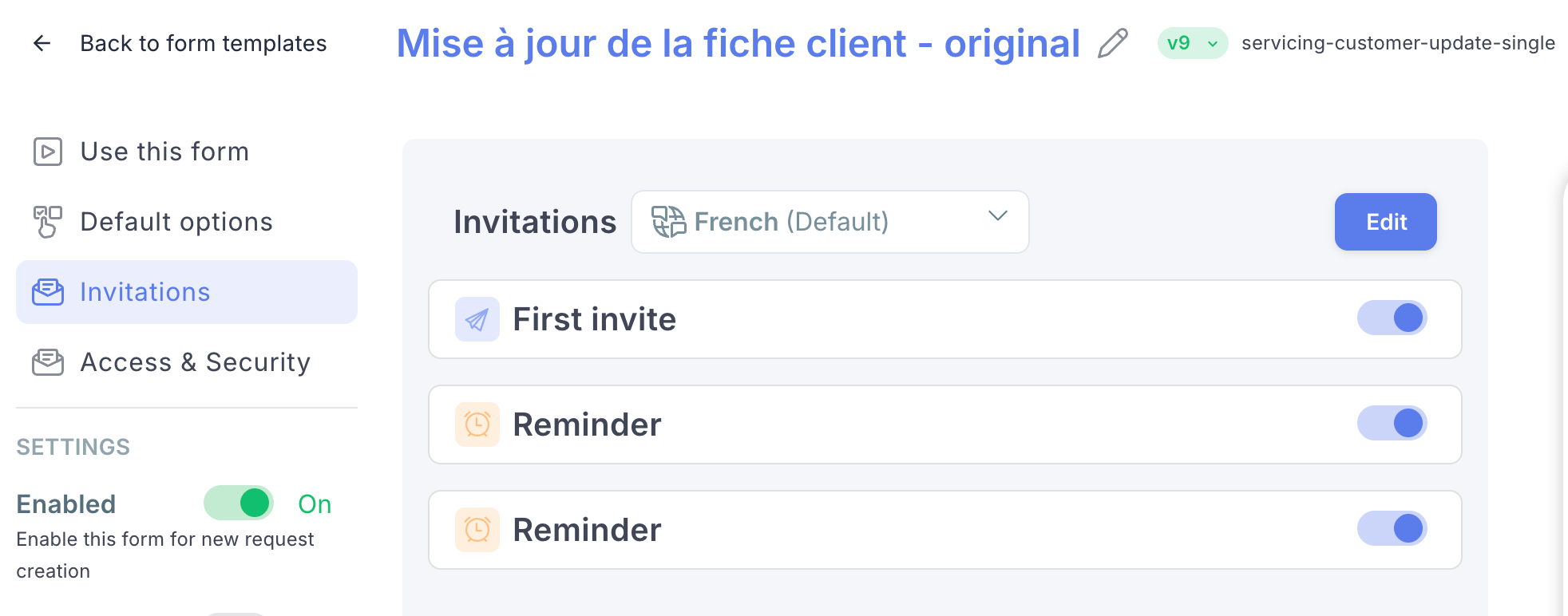
3
Edit the notifications
Click on “Edit”.
4
Enable or disable channels
For each notification, you can activate or deactivate delivery by email and/or SMS.
5
Adapt the content
For each notification, you can also edit the message content to match your office’s tone and communication style.
6
Save your changes
Once you are done, click “Save” to apply your changes.
You’re done 🎉
Your form is now fully customized, both in terms of content and client notifications. Any form sent from Brio, Outlook, or Penbox will reflect your changes.What’s next?
Send a bulk client update campaign
Send the client update form in bulk to all your Brio clients at once.
Send & receive a client update
Send a one-off client update form directly from a Brio client file.