

Install and connect the extension
1
Find Penbox on the Microsoft Marketplace
Go to the Microsoft Marketplace and search for Penbox, or go directly to the Penbox listing.
2
Find Penbox on the Microsoft Marketplace
Go to the Microsoft Marketplace and search for Penbox, or go directly to Penbox on the Marketplace.
3
Sign in to the Marketplace
Sign in with your Outlook email address.
4
Install the extension
Click Get it now.
5
Install the extension
Click Get it now.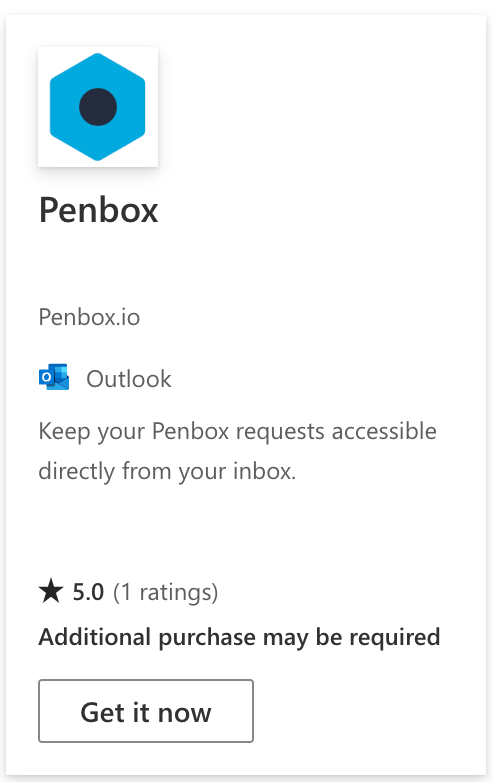
6
Open Outlook
Go to your Outlook inbox and click the three dots (more options).
7
Open Outlook
Go to your Outlook inbox and click the three dots (more options).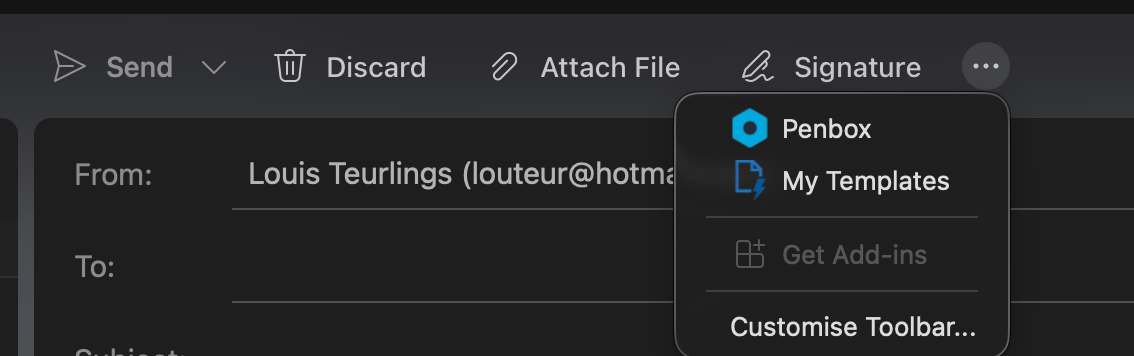
8
Find the Penbox extension
Locate the Penbox extension you just installed.
9
Pin the extension
Click the pin icon to pin the extension so it remains visible every time you open Outlook.
10
Log in to Penbox
Click Log in inside the Penbox extension to connect it to your Penbox workspace.
11
Log in to Penbox
Click Log in inside the Penbox extension to connect it to your Penbox workspace.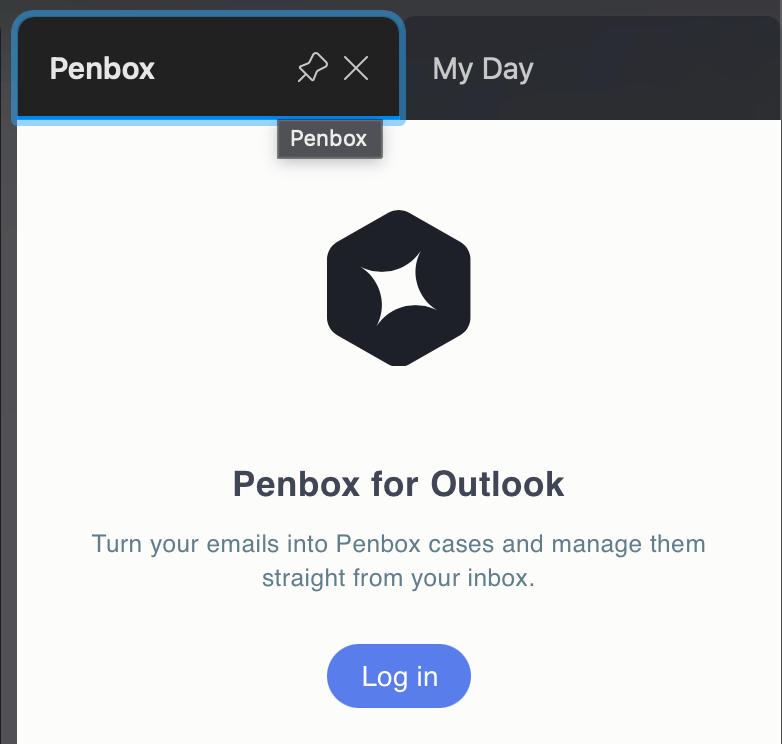
12
Confirm the new device
A page will automatically open in your browser asking you to confirm that you want to connect a new device. Click Confirm.
13
Confirm the new device
A page will automatically open in your browser asking you to confirm that you want to connect a new device. Click Confirm.
What’s next?
Make a form available
Discover all the ways to send a Penbox form to your contacts.
Form Notifications
Configure the invitation and reminder emails your contacts receive.